Run & Automate
Build automations with AI
Describe what an automation should do and attach the files it will load. The AI drafts its steps, checks every transaction and field against your M3, and asks you about anything your files don't answer. You review the draft and dry run it before anything reaches M3.
Who can use it
Building with AI is part of Loupe Code. You see Build with AI when your organization has Loupe Code and an administrator has given you the Code feature in Settings. Members who can only view can't use it.
Sign in to the M3 environment you are building for first. The AI uses that environment's programs and field lists to check the draft.
Each build counts toward your organization's Loupe Code spending, like building an app. When your organization has reached its monthly limit, the build doesn't start, and an administrator can raise the limit in Settings.
Describe the job
Open an automation, click Edit automation, then Build with AI:
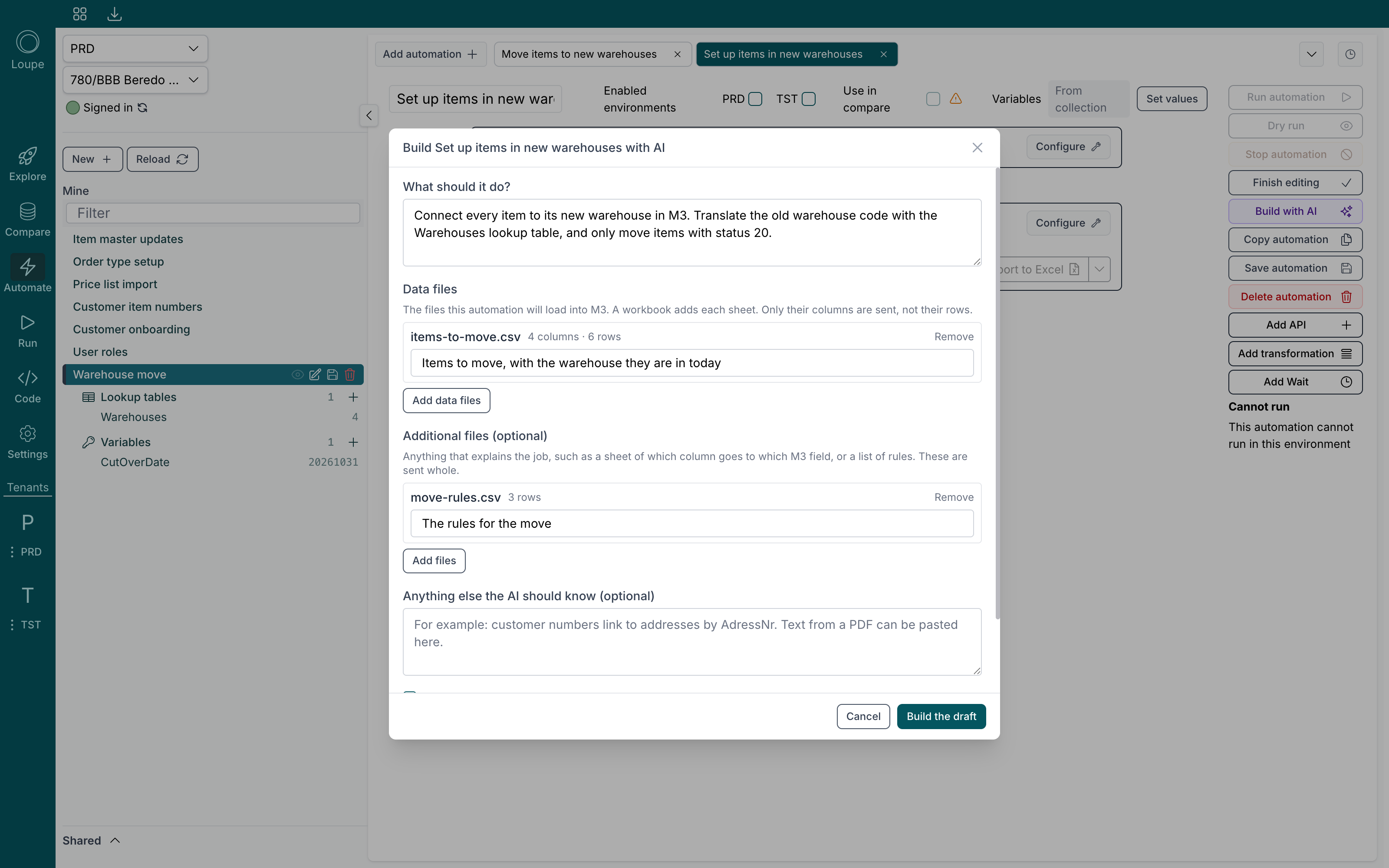
- What should it do? Write the job in your own words, the way you would explain it to a colleague. Name the M3 transactions if you know them, and the rules that matter, such as which rows to skip.
- Data files are the files the automation will load into M3, in CSV or Excel. A workbook adds each sheet as its own file. Say in a few words what each file holds, for example our customers or items to move.
- Additional files explain the job: a mapping sheet of which column goes to which M3 field, a list of rules, or a Word document with the specification. They are optional.
- Anything else the AI should know is for details that are in no file, such as how two files link to each other. Text copied from a PDF can go here too.
- Tick Show the AI up to 5 values per column so it gets date formats and field lengths right.
The AI already knows the collection's lookup tables and variables and can use them in the draft.
What is sent to the AI
Open What is sent to the AI in the dialog to see exactly what leaves your computer for this build:
- what you wrote, and what you said each file is;
- the column names of your data files, and a few values from each column when you ticked the box;
- your additional files, whole;
- the names of the collection's variables and lookup tables.
The rows of your data files stay on your computer. The AI can look up M3's programs and fields, and it can't run anything in M3.
While it builds
Click Build the draft. Drafting usually takes a few minutes, and the dialog shows what the AI is doing as it goes. Click Stop to cancel.
When it is done, the dialog sums up the draft: its steps, what to check, and any questions the AI has for you. Then choose:
- Use the draft to fill the automation with it. Your data files are loaded into its Data initialization.
- Change and build again to go back to your description and files, and build a new draft.
If the AI couldn't finish, the dialog lists what is still missing. You can use the draft anyway and finish those parts yourself.
Review the draft
A drafted automation shows Drafted with AI: review before running above its steps. Expand it to see:
- To check: places the AI wants you to look at, each with the step it belongs to.
- Rows of your files the AI didn't use, and why. This is useful with a mapping sheet, to see which lines it skipped.
When you are happy with the draft, click Dismiss review.
Answer the AI's questions
When your files leave something open, such as which address type to use, the AI asks rather than guesses. Click Answer questions. For each question, pick one:
- Use the suggestion, when the AI has one;
- Something else, and write your answer;
- Leave it, it doesn't need an answer.
Your answers are saved as you go. Click Send answers to the AI and it updates the draft with them.
Change an automation with AI
On an automation that already has steps, the button reads Change with AI. Describe what should change, for example run the order head once per customer number, and set the order type to CO1. The AI works from the automation's current steps and its files.
The result replaces the automation's steps and its Data initialization. You can go back to the earlier version from the history. A few kinds of step can't be changed with AI yet, such as Wait steps; the dialog says so when your automation has one.
Always dry run a draft
The AI builds a draft, and you decide what runs. Before running a drafted automation for real, try it with a dry run: steps that read run for real, and steps that write show what they would send, including required fields that are still missing.
Files aren't kept after a reload. Load them again in Data initialization with Import CSV, or Import files when the automation loads several, before you run or dry run it.