Code
Build an app
An app is a standalone screen, or a few screens that belong together, with its own user interface and its own link. It reads and writes M3 through the M3 APIs, as the signed-in user.
Start a new app
In the project tree, open the project the app belongs to and click New app under Apps. Give it a name (or leave it blank and Loupe names it), an optional description, and describe what to build.
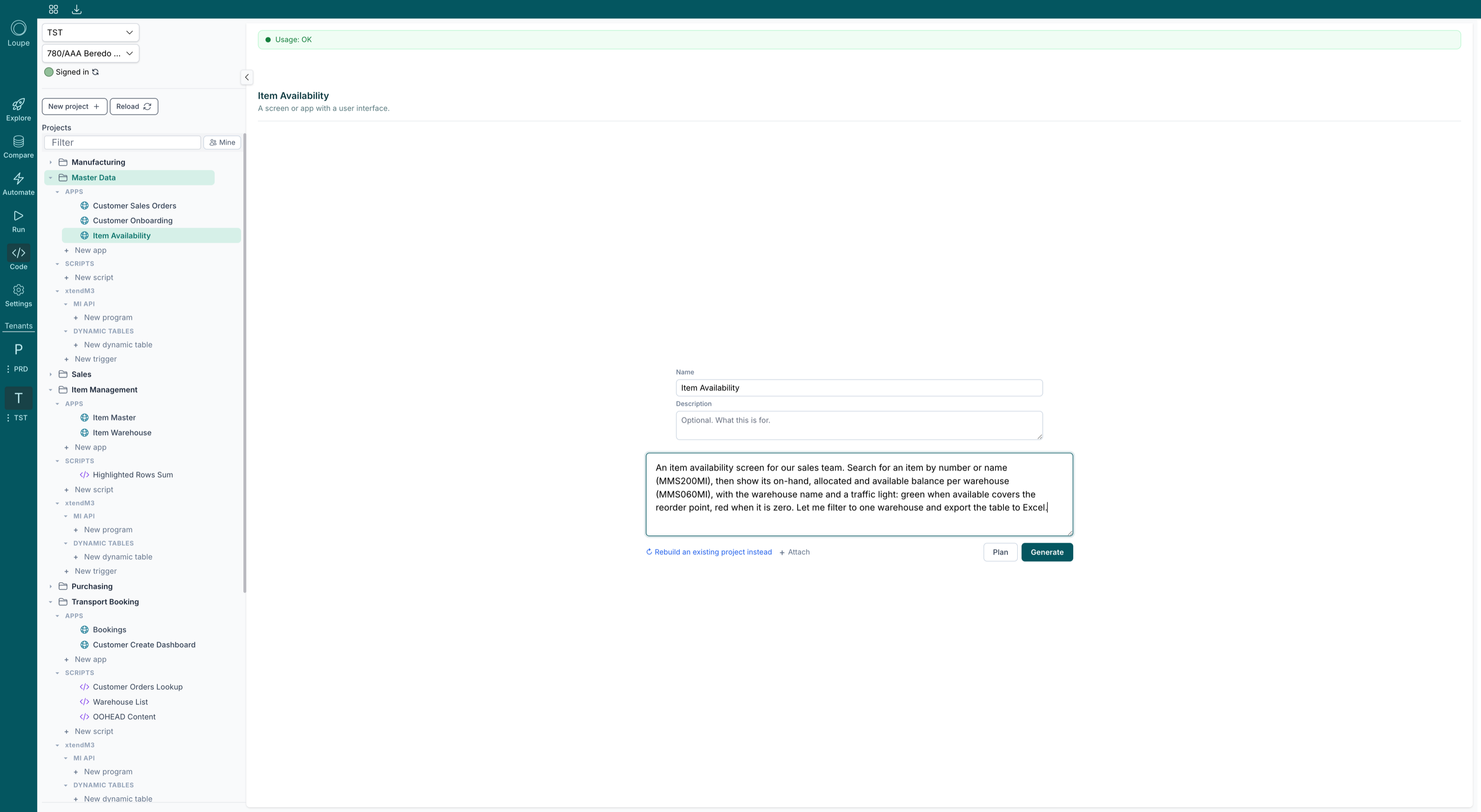
Below the prompt:
- Attach adds screenshots or CSV files that show what you mean. They are used for this build only and never stored.
- Rebuild an existing project instead takes the source of an app you already have (an old H5 script, a mashup, an Experience Designer app) and builds a fresh app that does the same job.
- Plan shows what Loupe intends to build before it starts. Generate builds straight away.
A build takes a few minutes. You can keep working on something else; the tree shows the app as building and Loupe tells you when it is done.
Try it in the preview
A finished app opens on Preview: the real app, running against the environment selected in the left panel, using your own M3 permissions.
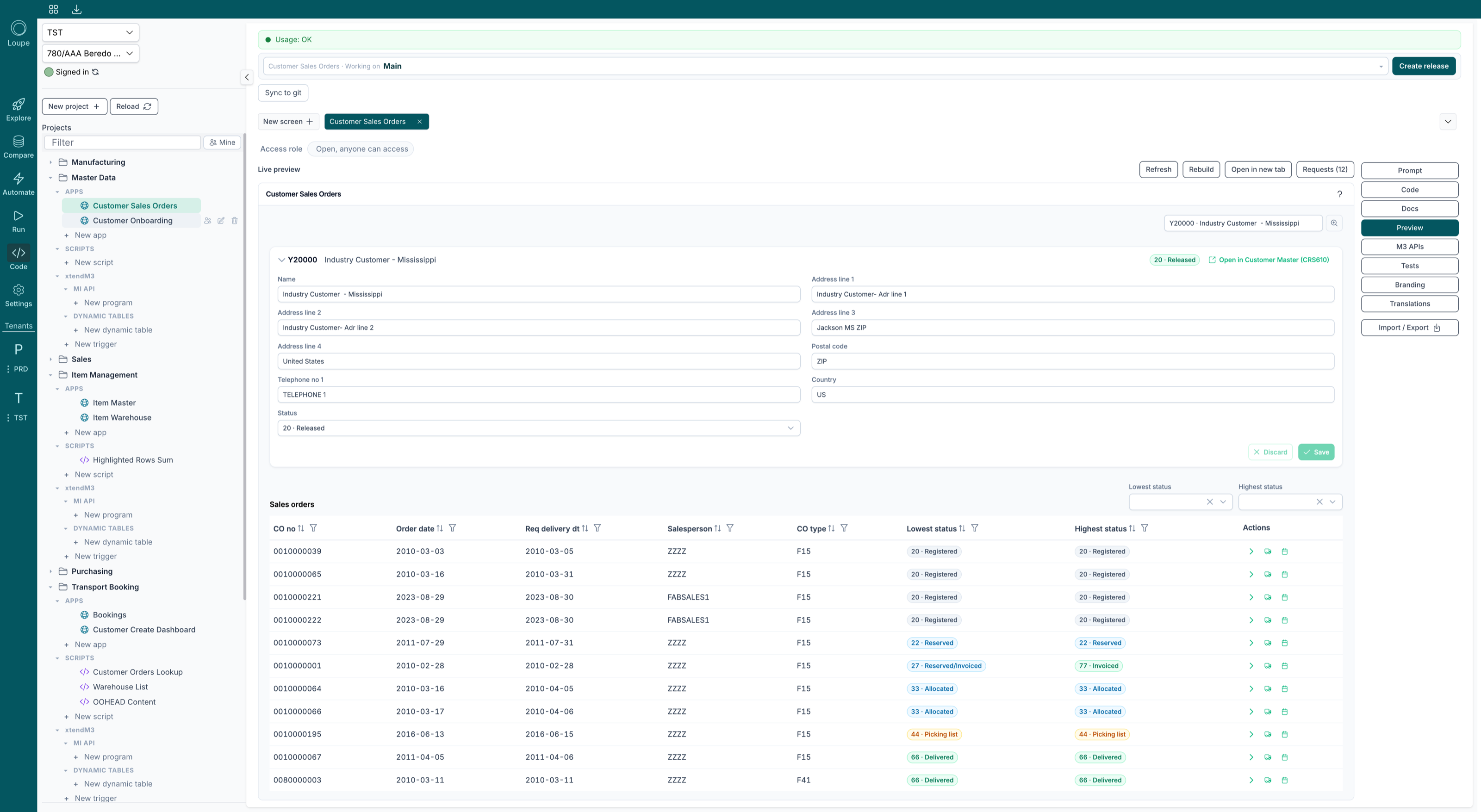
- Refresh reloads the preview. Rebuild compiles the app again from its current code.
- Open in new tab runs it outside Loupe, the way your users will get it.
- Requests opens a window listing every M3 call the previewed app made, with its input and output. This is the quickest way to see why a screen shows what it shows.
- Access role decides who can open the finished app. Open, anyone can access is the default; pick an M3 role to limit it to users who have that role in M3.
Ask for changes
Switch to Prompt to see the conversation that built the app: your original prompt, each change you asked for, and what Loupe did in reply.
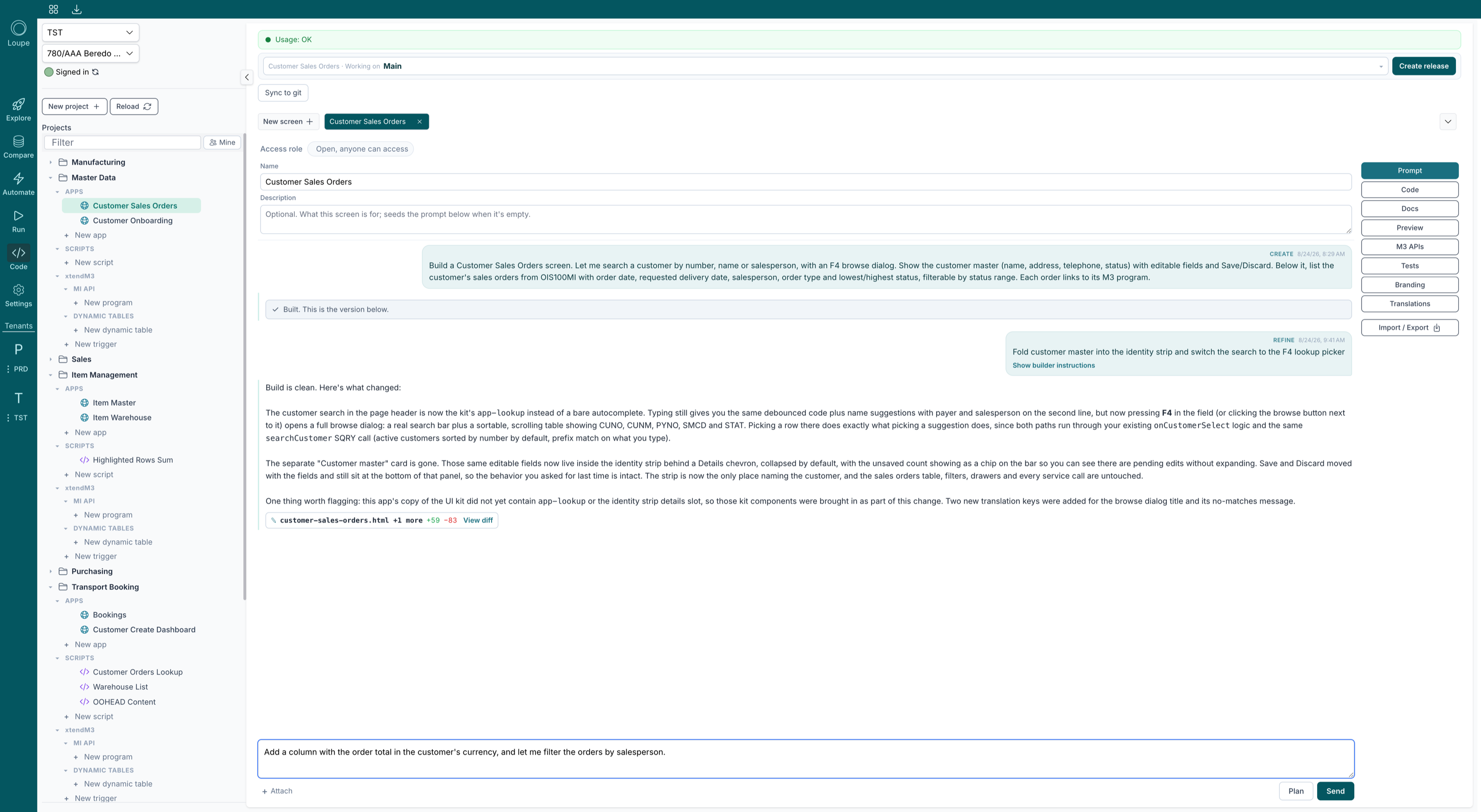
Type the change in the box at the bottom and Send. Keep it to one change at a time, and describe the outcome rather than the code: "the customer search should open a browse dialog on F4" is better than "replace the autocomplete component". Loupe answers with what changed and a View diff link. Use Plan here too when a change is large.
You can also ask questions in the same box ("which transaction fills the status column?") without changing anything.
The other views
- Code shows the source, with full editing and IntelliSense. Hand edits are kept and the next prompt builds on them.
- Docs is Loupe's own write-up of what the app does and which M3 transactions it uses. Handy to paste into a handover.
- M3 APIs lists the transactions the app calls.
- Tests locks in behaviour. Create test suite records what the app does today so a later change cannot quietly break it; Run tests checks. You can also ask for a test in the composer ("add a test for the empty search result").
- Branding applies your organization's colours and logo. Translations adds languages; Loupe translates the interface and you correct what it got wrong.
- Import / Export moves an app between organizations or environments as a file.
Screens, releases and git
Larger apps have more than one screen; New screen in the tab row adds one to the same app, and each screen has its own prompt conversation.
The line at the top shows which version you are working on, Main by default. Create release freezes the app under a version number for your users, and you keep refining Main. Sync to git pushes the app's source to a repository your organization owns, as clean code with nothing Loupe-specific in it.