Code
Build an M3 script
A script runs inside an M3 screen you already have: a button on the customer panel, a field that fills itself in, a list column that shows something from another program. You build it on the live screen, and you try it in your own M3 session before anyone else sees it.
Start a new script
Open the project, click New script under Scripts, and describe what the script should do. Name the program and panel if you know them.
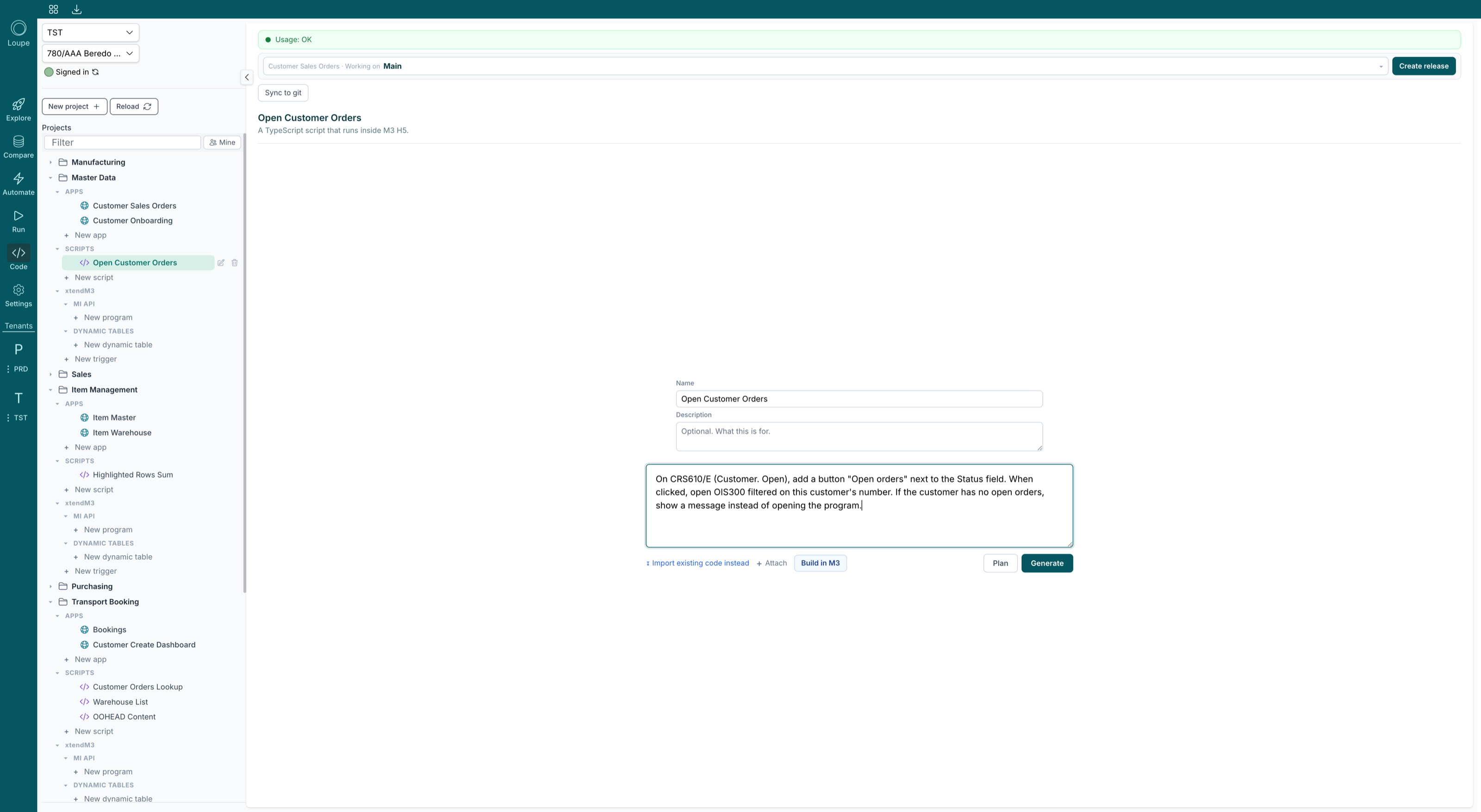
You can type the whole thing here and press Generate. But for anything that adds something to a panel, Build in M3 is the better way in.
Build in M3
Build in M3 opens the M3 environment selected in the left panel and puts a small card over it. Use M3 as you normally would and navigate to the program and panel the script is for. The card tells you which panel you are on, and Pick on this panel lights up once a program is open.
Once you pick the panel, every field on it is outlined:
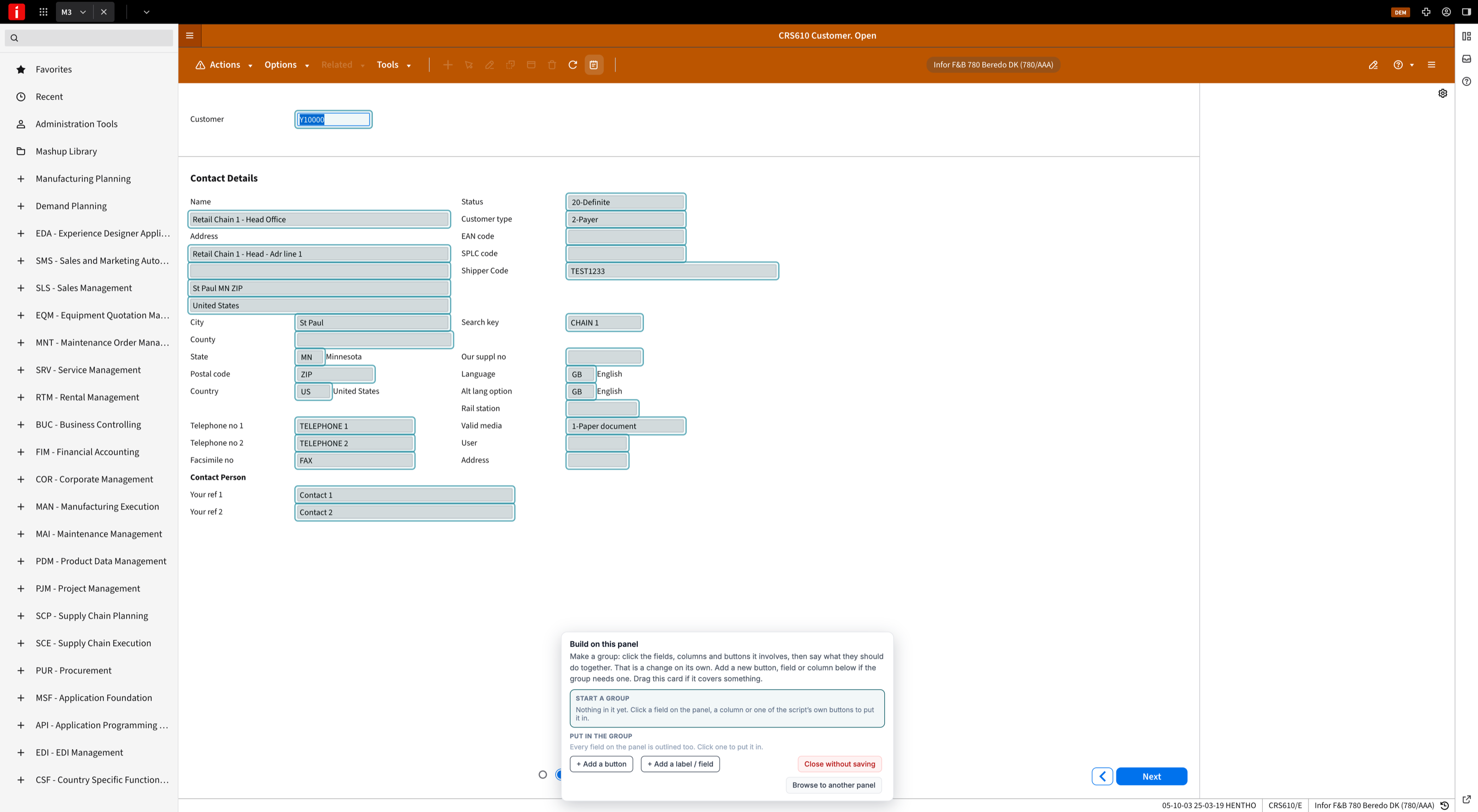
From here you work in groups: the fields, columns and buttons a piece of behaviour involves, and one sentence saying what they should do together.
Add a button or a field
Add a button asks what the button should say, then follows your mouse across the panel at its real size. Click where it should go. Add a label / field works the same way for a labelled input.
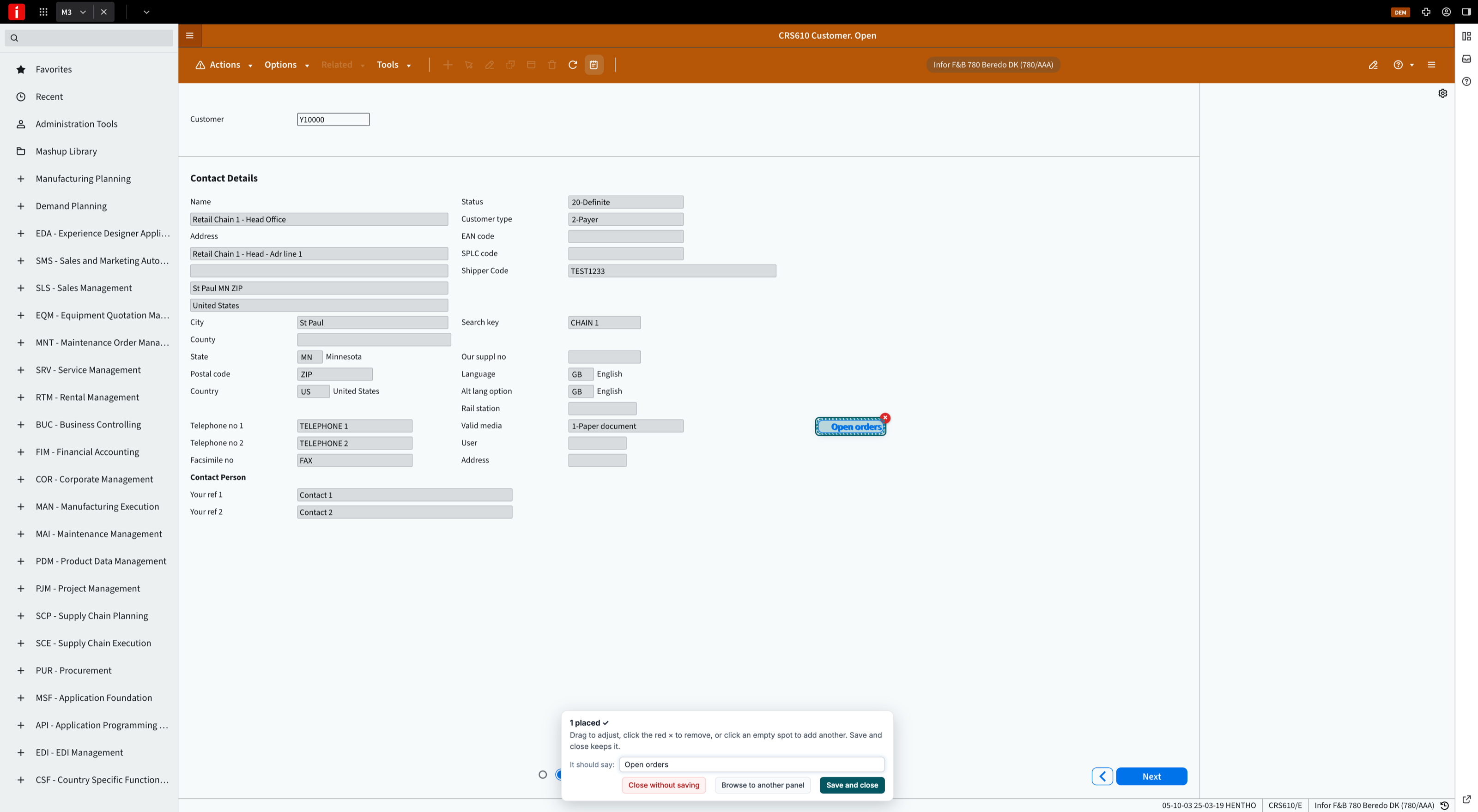
A placed element can be dragged to adjust, or removed with the red cross. Loupe records the program, the panel and the position, so the script draws the element in exactly that spot.
Say what a group does
Click a placed element, or any existing field on the panel, to put it in the current group. Then say what the group should do and press Add. Repeat for each behaviour the script needs; each group is one rule.
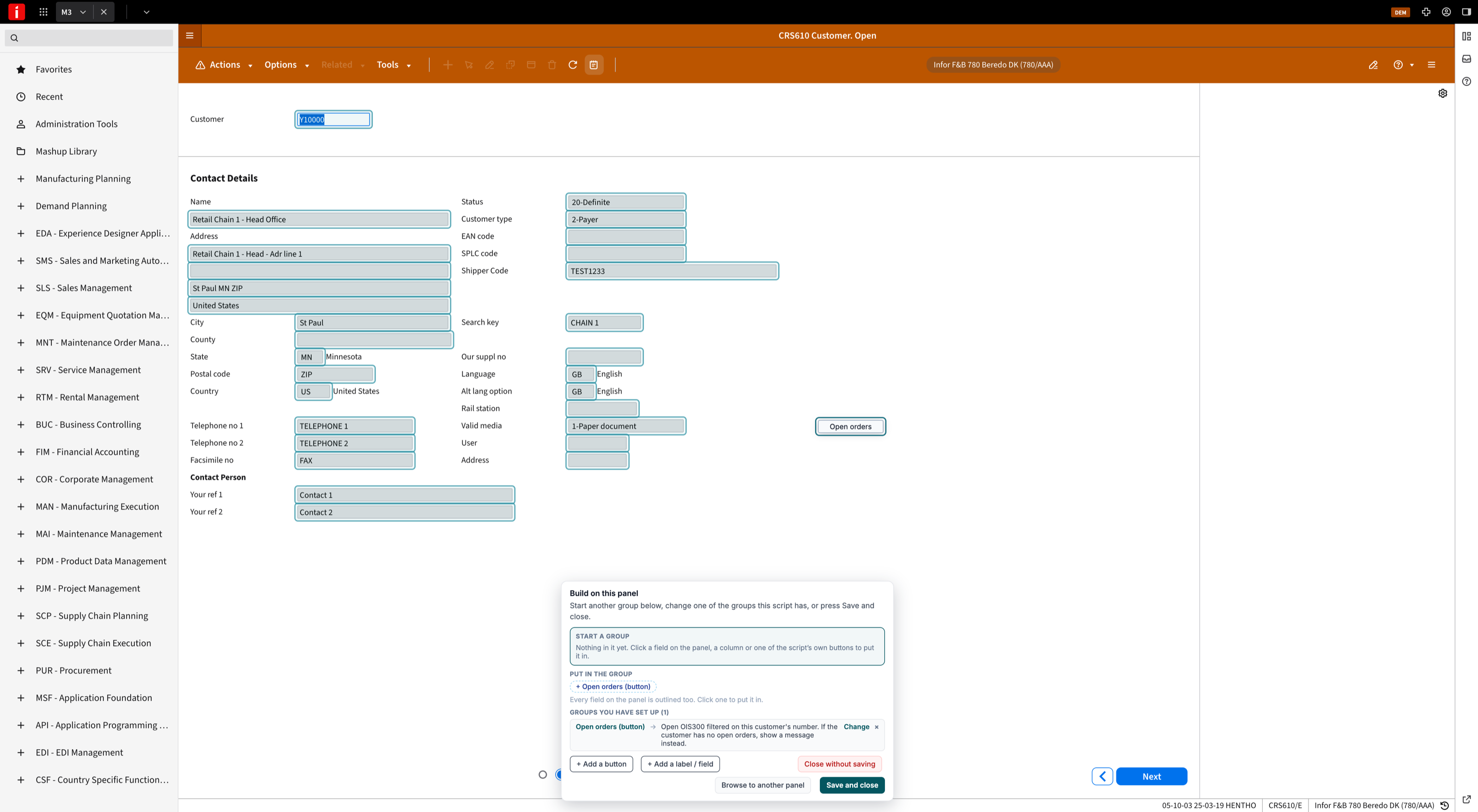
Browse to another panel lets one script cover several panels of the same program. Save and close brings everything back to Loupe.
Back in Loupe
The composer now shows what you built: each rule as a chip with its sentence, the panel the script will run on, and every placed element with its caption and position.
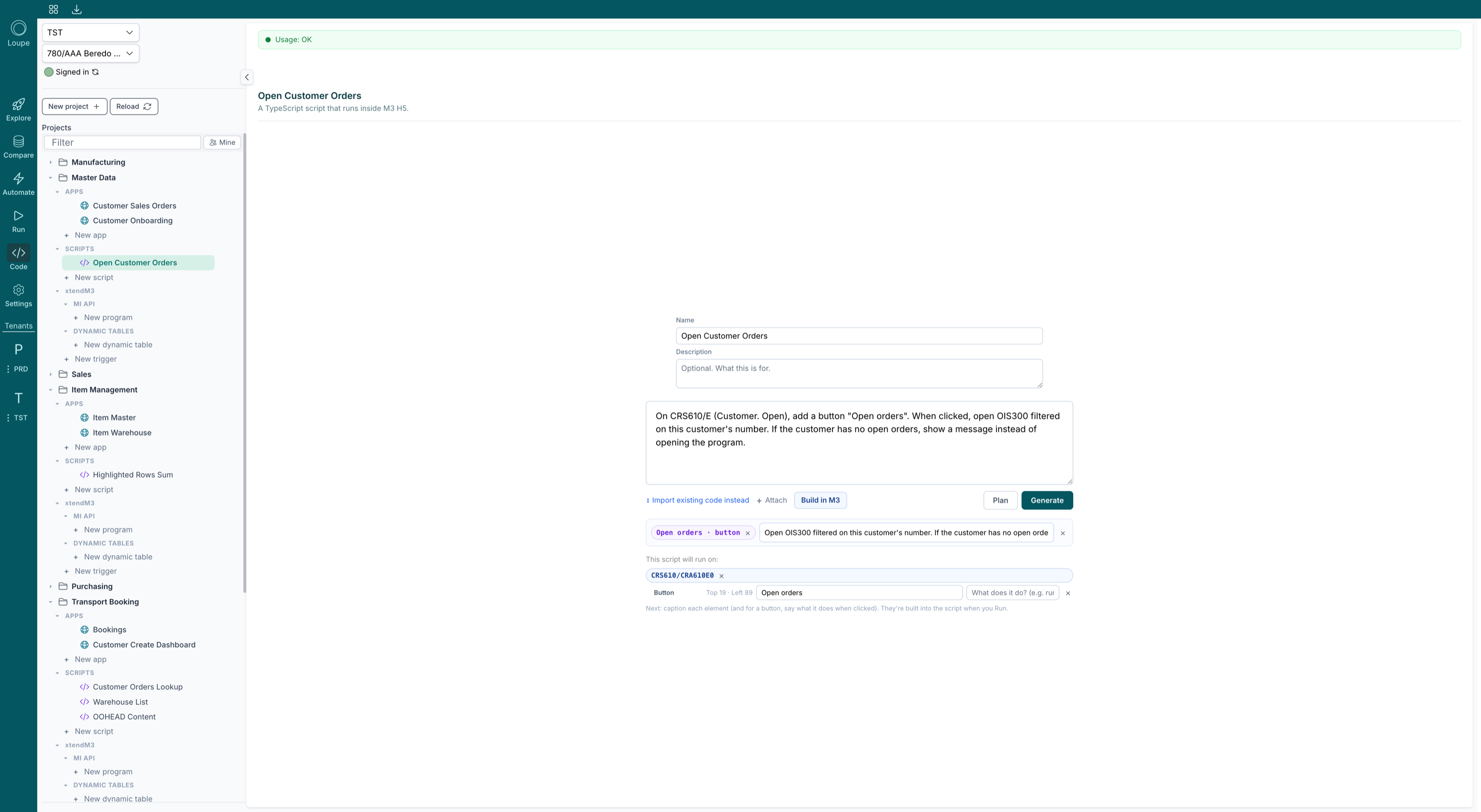
Add anything the builder could not capture in the prompt box, caption each element, and press Generate (or Plan first).
While it builds
A build takes a few minutes and shows what it is doing; Show log opens the detail. When the builder needs something only you know, it pauses and asks, here in the workspace. Answer, or leave it: after a few minutes it continues with its best guess and tells you what it assumed.
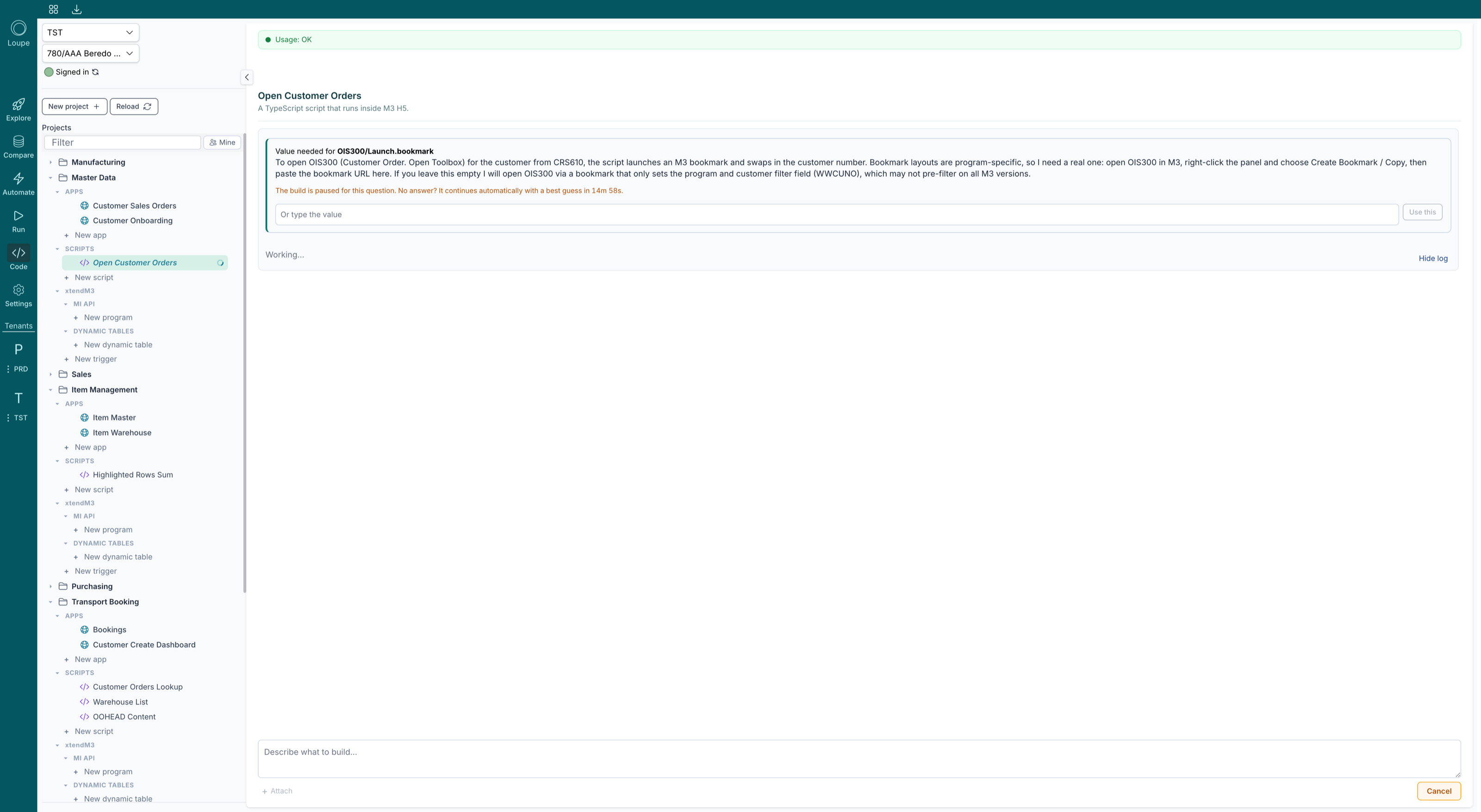
The Build view
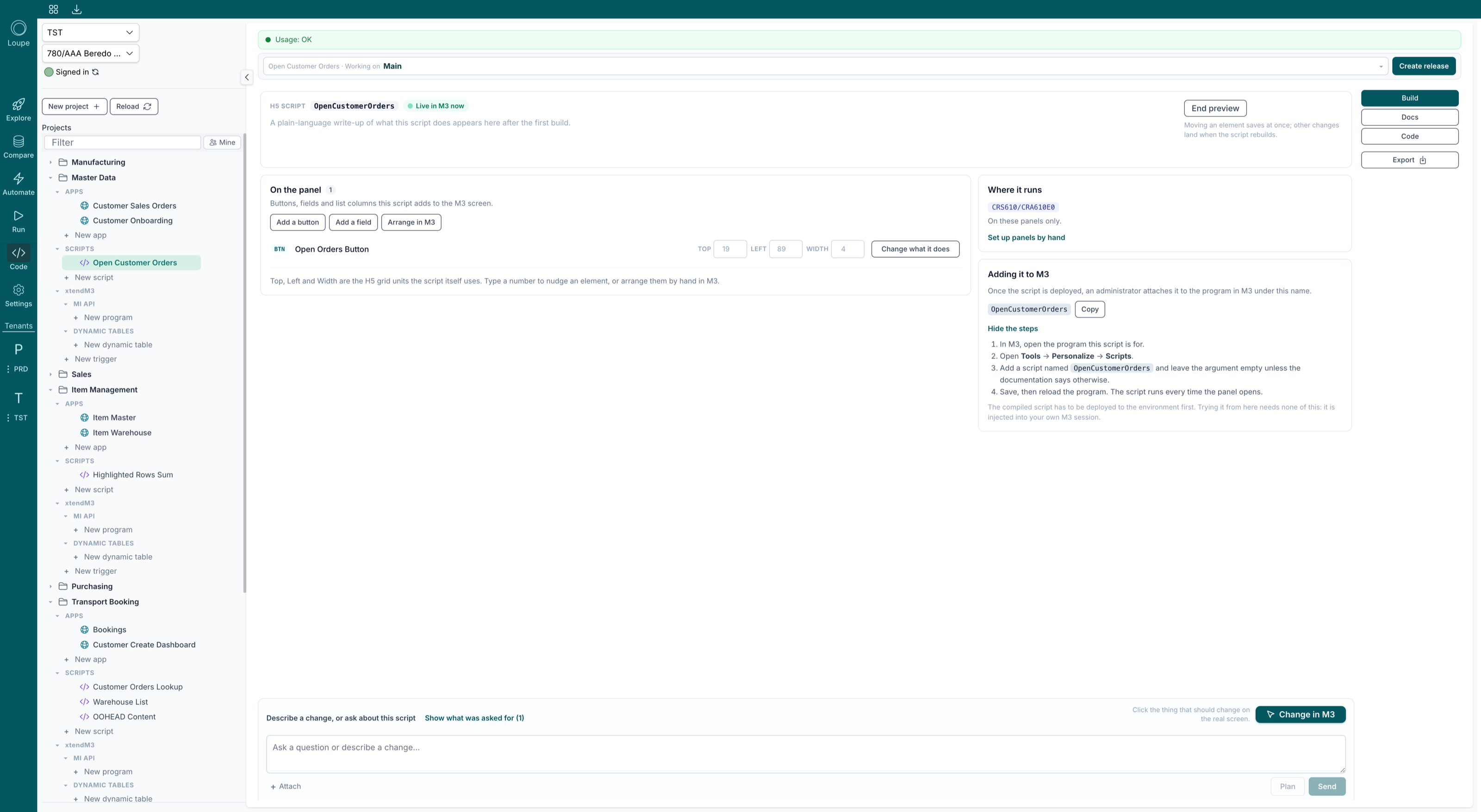
A built script opens on Build, which describes the script the way an administrator will meet it:
- On the panel lists the buttons, fields and columns the script adds, each with its Top, Left and Width in H5 grid units. Type a number to nudge one, or Arrange in M3 to drag them into place on the live panel. Change what it does sends a change scoped to that one element. Add a button and Add a field take you back into M3 to place more.
- Where it runs shows the program and panels the script is bound to. A script with no binding runs on every panel it is attached to, and the view says so plainly.
- Adding it to M3 gives the class name to register and the steps. See Deploying a script.
Preview in M3
Preview in M3 runs the script in your own M3 session, on the environment selected in the left panel. Nothing is deployed and nobody else is affected. Loupe opens the program, injects the script, and the button or field appears on the real panel with real data behind it.
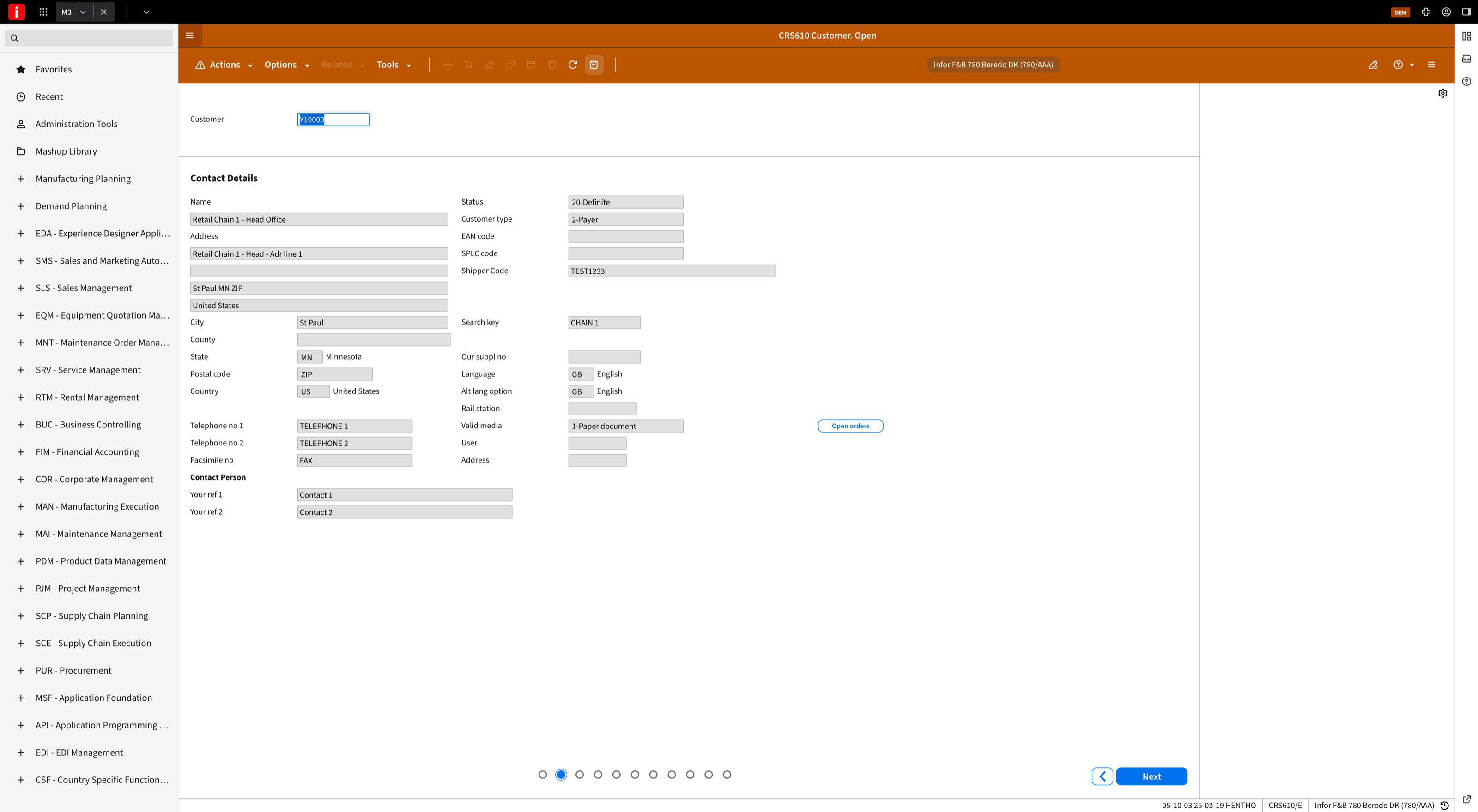
While a preview is running the script header shows Live in M3 now and an End preview button. Moving an element saves straight away; other changes reach M3 when the script rebuilds, and you reload the panel to see them.
Click the button and use it as your users would. When the first build gets something wrong (the example above read the customer number from the wrong field on its first try), describe the fix in one sentence and rebuild: "the customer number is in the Customer field at the top of the panel".
Change a script on the live screen
For a built script, the composer gains Change in M3. It opens M3 with the script's own elements outlined next to the panel's fields. Click the thing that should change, say what should be different, and Loupe changes that and nothing else. Typing the change under Prompt works too.
Deploying a script
A finished script is a single JavaScript class. Export downloads it; Code shows the TypeScript source. To put it in front of users, an M3 administrator deploys the compiled script to the environment and then, in M3:
- Open the program the script is for.
- Open Tools → Personalize → Scripts.
- Add a script with the class name shown under Adding it to M3, and leave the argument empty unless the script's Docs say otherwise.
- Save and reload the program. The script now runs every time the panel opens.
Trying it from Loupe with Preview in M3 needs none of this.