Run & Automate
Run APIs
The Run workspace is where you set up individual M3 API calls, run them interactively and export the results. Related calls are saved together in an API collection, for example all the lookups you use for item master maintenance.
If you just want to fire off a quick one-time call, Explore can run APIs too. Run is for the calls you'll come back to.
Before you start
Pick your environment and company/division at the top left, and make sure you're signed in.
Create a collection and add an API
Click New above the list to create a collection. It appears under Mine. Rename it with the pencil icon; a clear name helps once you have a few.
Click Add API and search for the program:
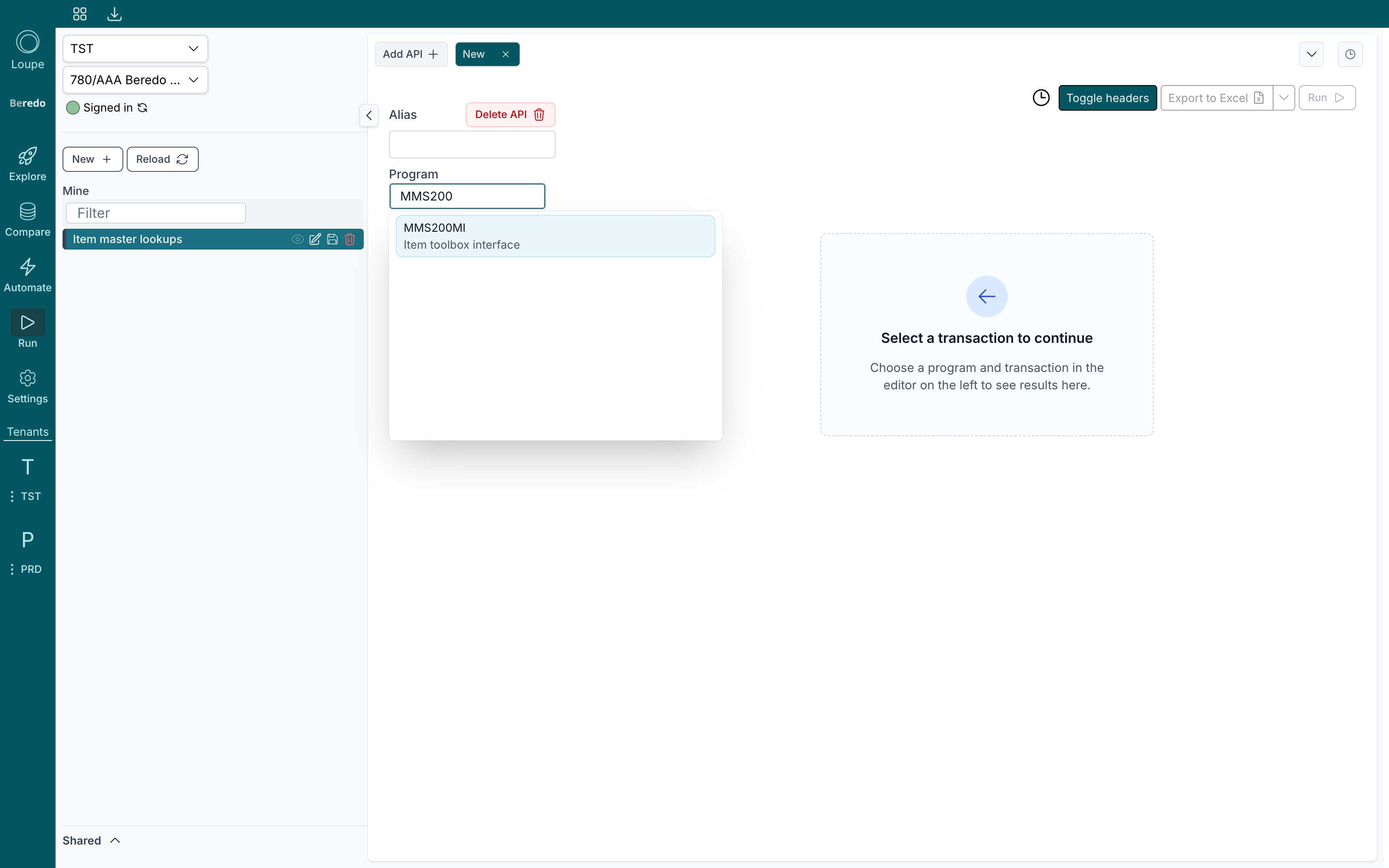
Pick the transaction. The API's inputs and outputs appear automatically.
Each API gets its own tab. Add as many as you like, drag the tabs to reorder them, and use Shift+← and Shift+→ to step between them.
Fill in inputs and run
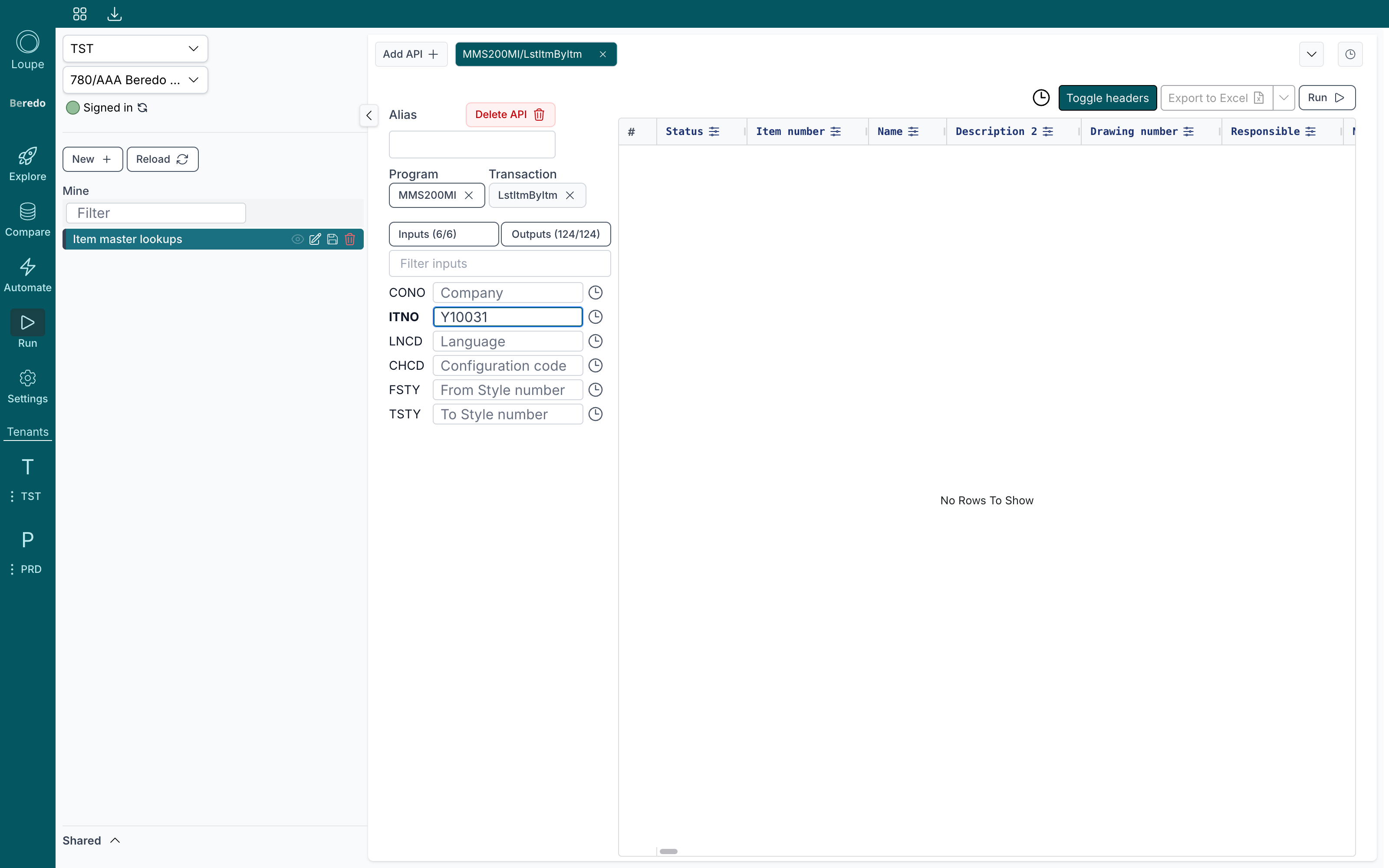
Each input has a labelled field. Fill in what the transaction needs and leave the rest empty. Required fields are shown in bold. Then press Run, or press Enter in any input:
The results land in the grid on the right:
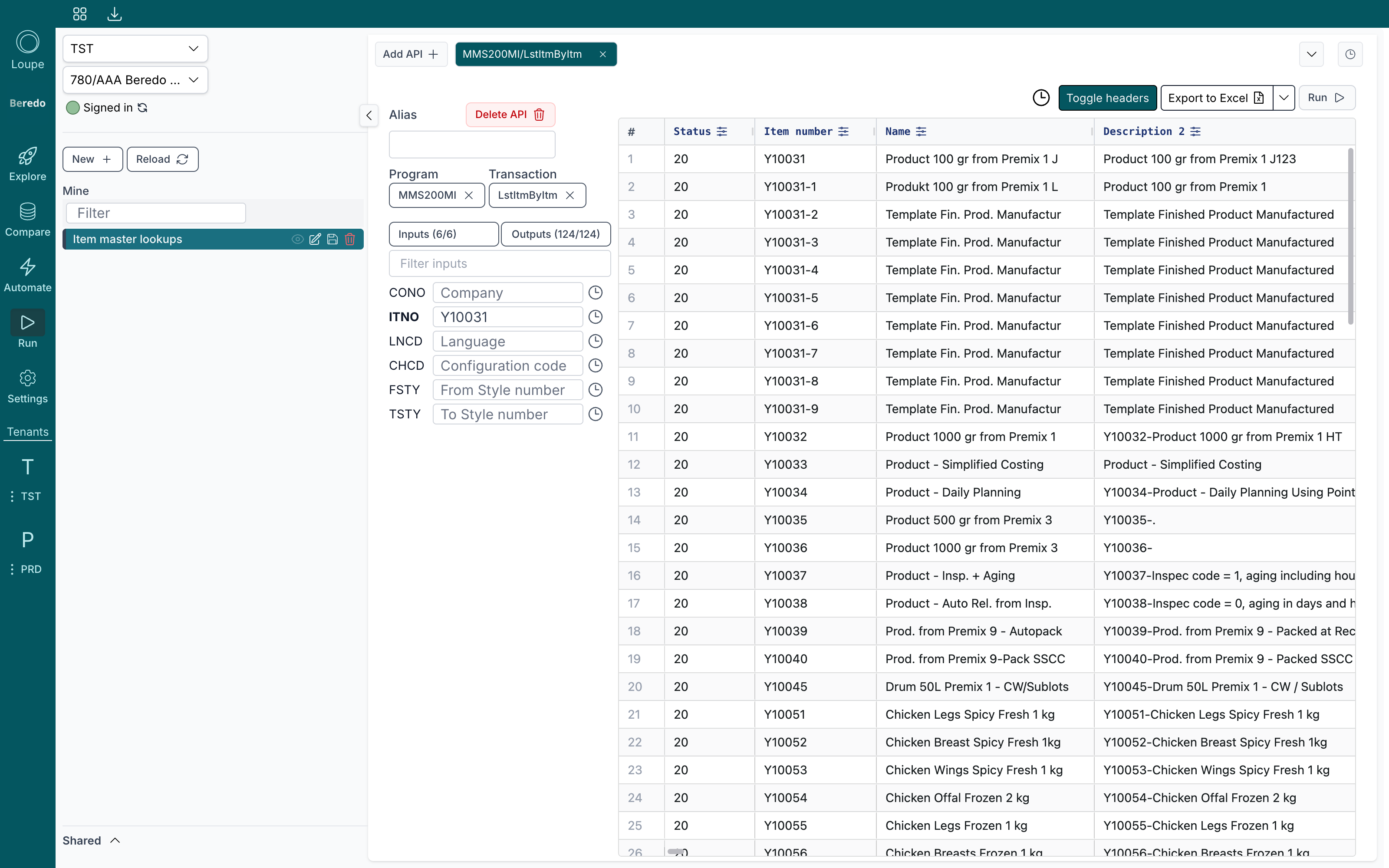
From the toolbar you can:
- Toggle headers between field descriptions and M3 field codes.
- Filter any column with the funnel icon in its header.
- Export to Excel, or Export to CSV from the arrow menu.
- Open the clock to see earlier runs of this API, with their inputs and results, and restore one. The clock next to each input field shows values you've used in it before. This history is stored on your computer only.
While a call is running, the Run button becomes Cancel. Errors from M3 are shown over the grid, with the failing field where M3 reports one.
Fine-tune the API
- Alias gives the API a friendly name in the collection's tab bar. Without one, the tab shows program and transaction.
- Inputs (n/N) limits which inputs are shown in the form. Required inputs can't be hidden.
- Outputs (n/N) limits which output columns are returned, and sets Max records for the call. By default every output is included. If no output is selected, the button shows a warning.
- Delete API removes the API from the collection.
Saving and history
Loupe saves your collection automatically a moment after every change. The diskette icon in the list, or Ctrl+S (⌘S), saves immediately. The clock at the right end of the tab row opens the History panel, where every save is listed and any earlier version can be restored.
Next steps
- When one call isn't enough, run an API for every row of a dataset, chain the results into another API and export the lot. Build an automation.
- Share the collection with colleagues.