Getting started
Sign in to your environments
Loupe talks to M3 on your behalf, so each environment you work with needs a one-time sign-in. You use your normal Infor credentials. Loupe never sees or stores your password.
Before you start
Your administrator must have connected your organization's environments to Loupe and given you access to them. Environments you have access to appear in the environment selector at the top left of every workspace, and in the Tenants section at the bottom of the sidebar.
Sign in
Open the workspace you want to use, for example Compare, and pick an environment in the selector at the top left. Until you're signed in, Loupe shows a red Sign In link:
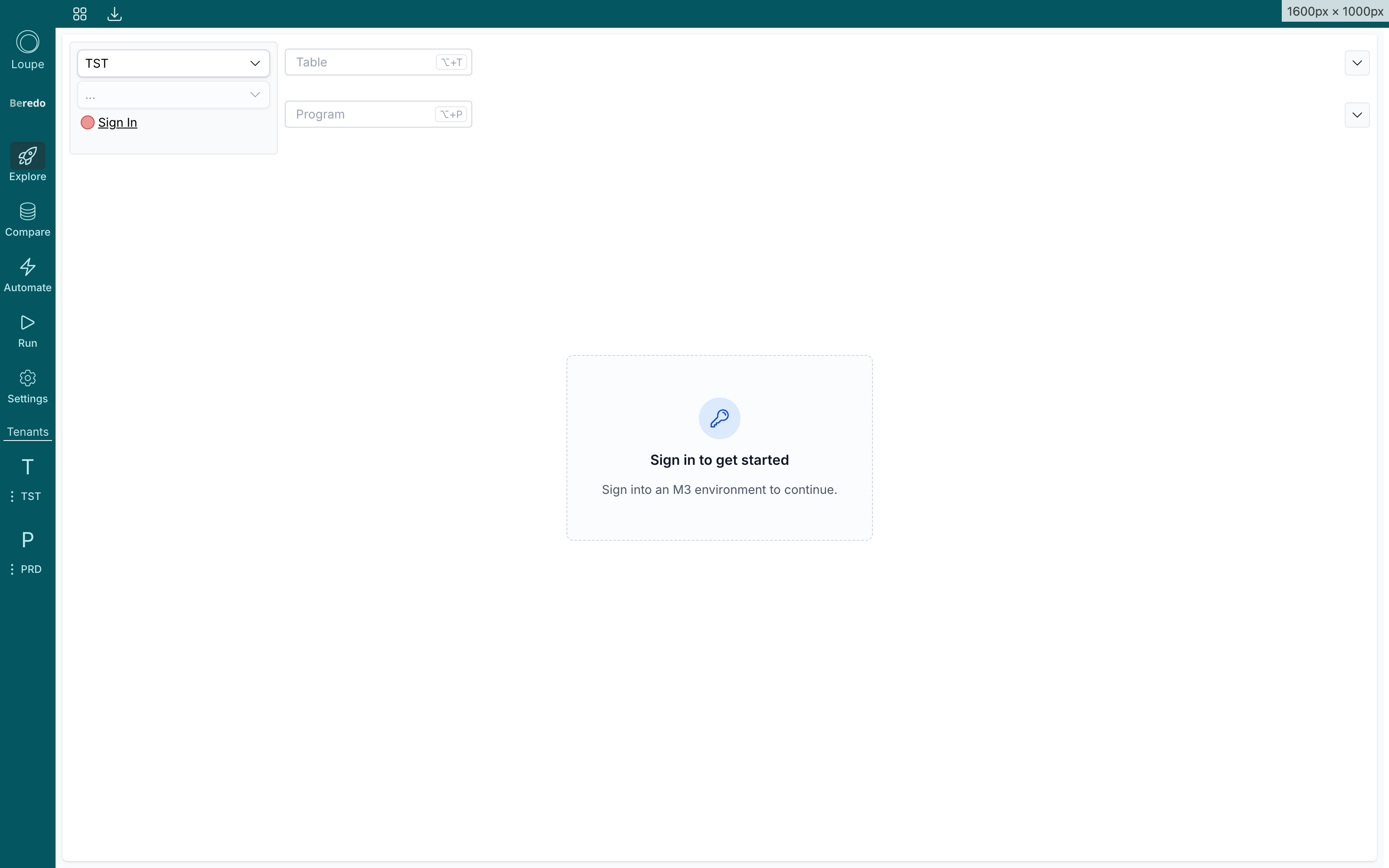
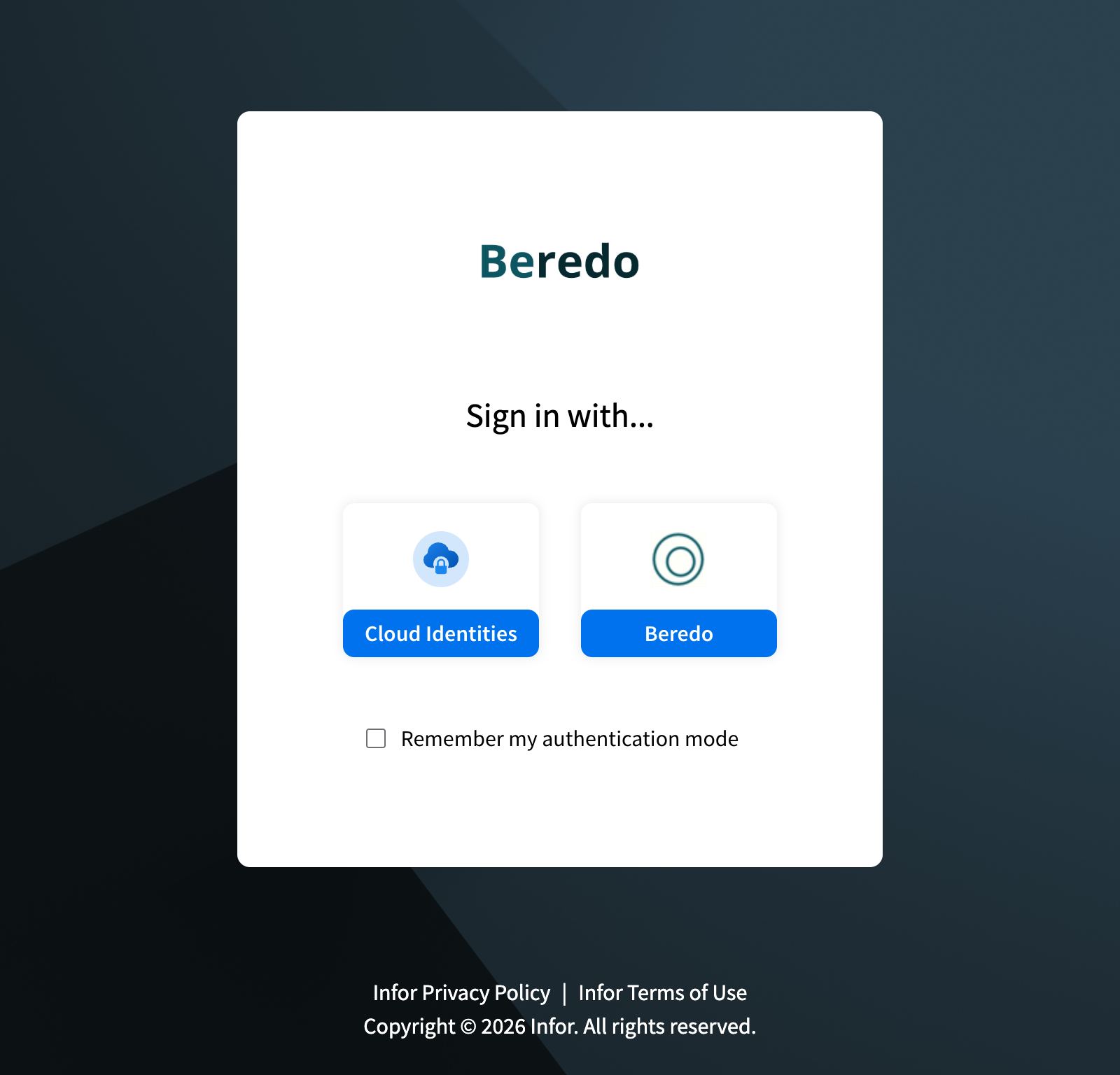
Click Sign In. An Infor sign-in window opens. If your company uses more than one sign-in method, choose yours:
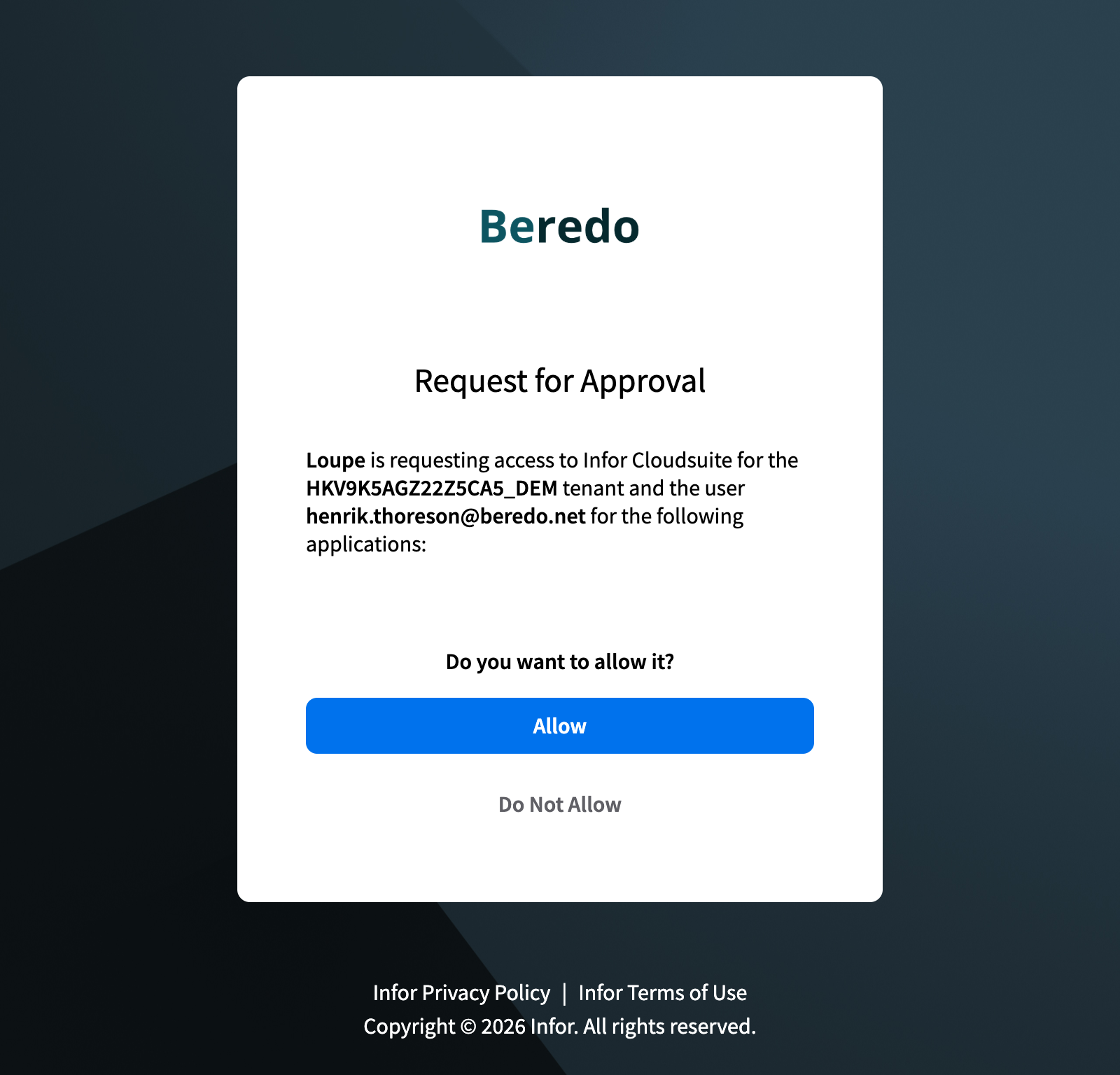
The first time, Infor asks you to approve Loupe's access to the environment. Review it and click Allow:
That's it. The environment shows a green Signed in badge, and the company/division selector becomes available.
You stay signed in
Loupe keeps you signed in between sessions, so this is not something you do every morning. If a session does expire, the red Sign In link simply appears again. Signing in to one workspace signs you in everywhere, including the M3 views in the sidebar.
Choose company and division
Under the environment, pick which company and division to work in. Options are listed as company/division followed by the company name, for example 780/AAA Beredo. Each workspace remembers your choice.
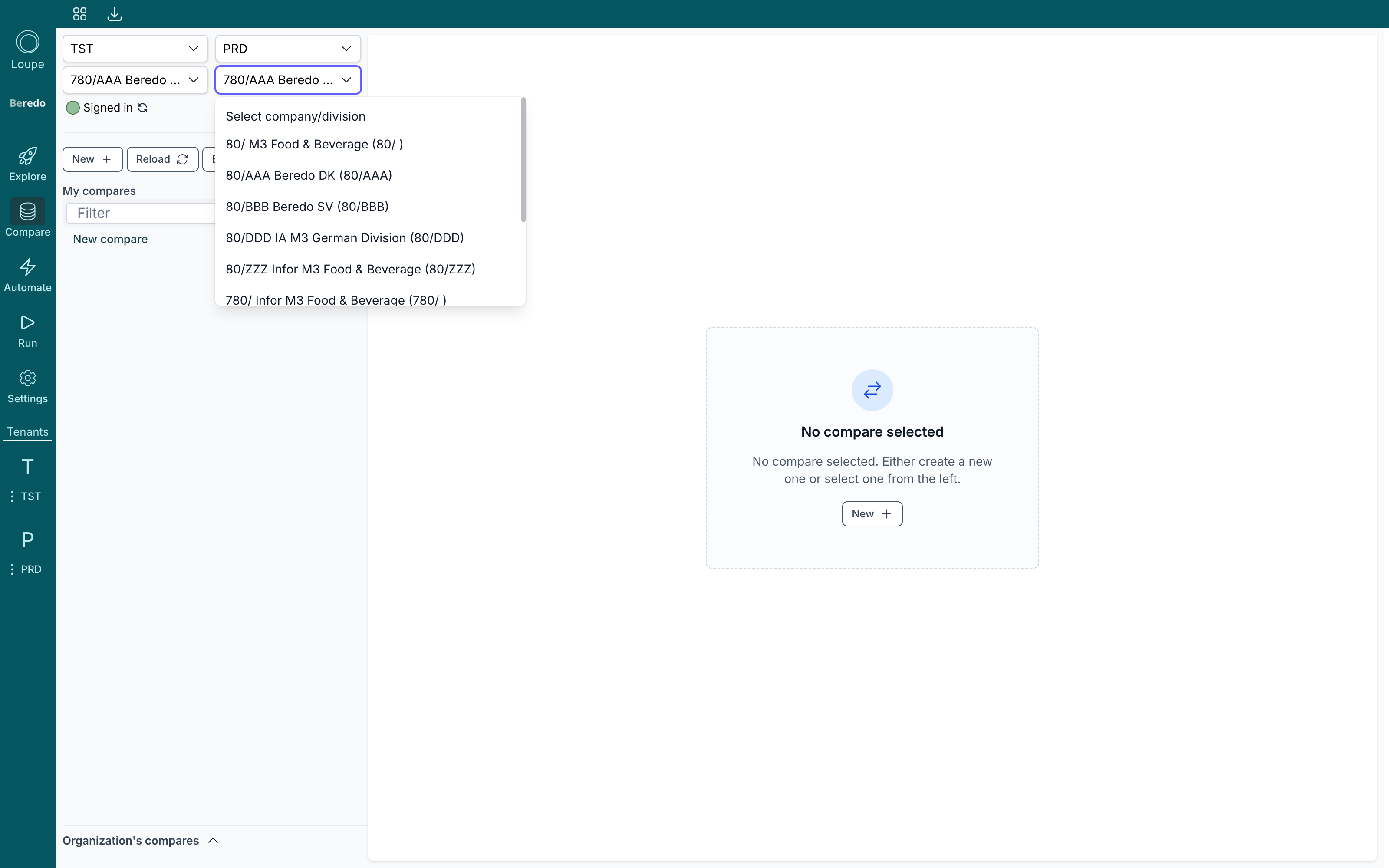
Next to Signed in there is a small refresh button. Click it if a company or division you expect is missing from the list, and Loupe reloads them from M3.
On-premise environments
If your M3 environment is on-premise and shows its own login form, Loupe offers to remember the username and password for you. Saved passwords are stored encrypted on your computer only and can be reviewed or deleted under Settings → Saved passwords.
Next steps
- Explore M3 data in a single environment.
- Compare environments side by side.
- Browse the M3 UI. The environments in the sidebar open the full M3 interface, all signed in at once.