Code
Build with Loupe Code
Loupe Code turns a description into working software for your M3: a standalone app, a script that runs inside an M3 screen, or an MI program. You describe it, Loupe builds it against your own environment's metadata, and you try it on live data before anyone else sees it.
Before you start
- Code is enabled per organization. It is part of a separate subscription, so the Code entry only appears in the sidebar once the Loupe team has enabled it for your organization.
- Each member is granted Code separately. Administrators tick Code on a member's row in Settings. Without it the tab stays hidden.
- Sign in to an M3 environment first. Code builds against the environment selected at the top of the left panel, and reads its programs, transactions and fields from there. Pick a test environment; nothing is ever deployed to M3 by Loupe itself.
What you can build
| Kind | What it is | Where it runs |
|---|---|---|
| App | A standalone screen or set of screens with its own user interface: lookups, dashboards, guided entry flows. Built on M3 APIs. | In the browser, from a link. Loupe hosts it. |
| Script | A TypeScript script that runs inside an existing M3 H5 panel: a button on CRS610, a field that validates itself, a column in a list. | Inside M3, attached to a program by an administrator. |
| MI program | An xtendM3 MI program with its transactions, plus dynamic tables and triggers. | Inside M3, deployed by your xtendM3 administrator. |
Apps and scripts have their own guides: Build an app and Build an M3 script.
The workspace
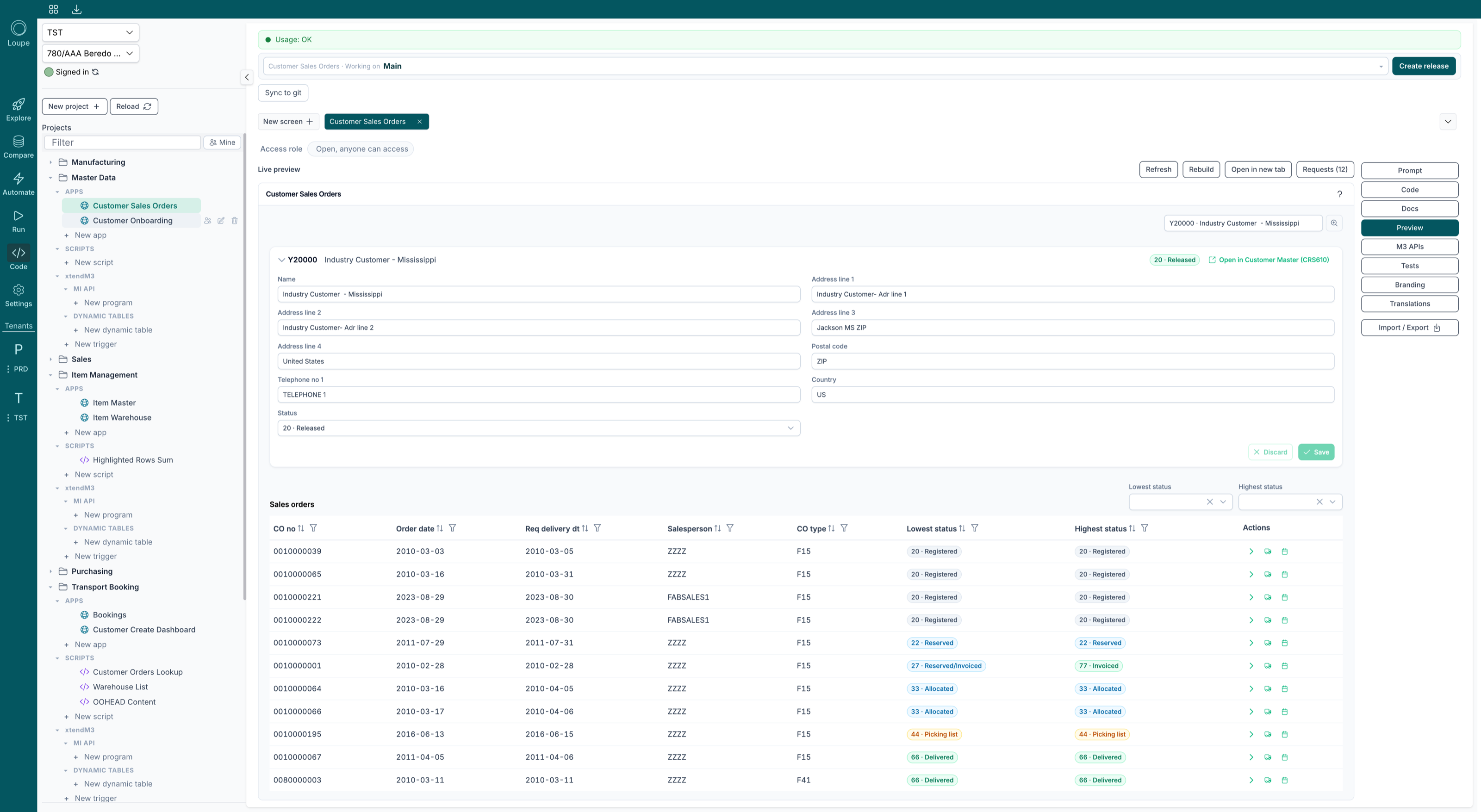
Projects group related work. Open one to see its Apps, Scripts and xtendM3 sections (MI API programs, dynamic tables, triggers). Every section ends with a New entry, and New project at the top starts a fresh group. Filter narrows the tree by name; Mine hides everything you do not own.
Select an item and its workspace opens on the right. The tabs on the far right switch between the views that item has: Prompt (the conversation that built it), Code, Docs (a plain-language write-up of what it does), and, for apps, Preview, M3 APIs, Tests, Branding and Translations.
Ownership and sharing
Projects are shared across your organization, so colleagues see each other's work. Each app, script and program has one owner. Anyone can open and run it; only the owner can change or delete it. Administrators can transfer ownership from the item's menu in the tree, for example when someone leaves, but cannot edit on the owner's behalf.
Versions and releases
Every app and script works on a Main line by default. Create release freezes the current state under a version number, so what people use does not move while you keep refining. Apps can also be synced to a git repository you control.
Writing a good prompt
The prompt is the whole specification, so it pays to be concrete. What works:
- Say who it is for and what they do with it. "For the sales team, to check availability before promising a date" gives the builder the right defaults for layout and wording.
- Name the M3 programs and transactions when you know them.
MMS200MI,OIS100MI,CRS610/E. If you do not, describe the data and Loupe finds the transaction, and will ask you when there is more than one candidate. - List the fields and actions you need, and the edge cases: what happens when nothing is found, when a value is blank, when the user has no permission.
- One screen per prompt. Build the lookup first, then ask for the detail panel as a change.
- Attach examples. A screenshot of the old screen or a CSV of the data it should show is worth several paragraphs. Attachments are used for that run only and never stored.
Two prompts that build well:
An item availability screen for our sales team. Search for an item by number or name (MMS200MI), then show its on-hand, allocated and available balance per warehouse (MMS060MI), with the warehouse name and a traffic light: green when available covers the reorder point, red when it is zero. Let me filter to one warehouse and export the table to Excel.
On CRS610/E, add a button "Open orders". When clicked, open OIS300 filtered on this customer's number. If the customer has no open orders, show a message instead of opening the program.
Plan first, then generate
Plan asks Loupe to read your prompt and come back with what it intends to build, in a few sentences, before anything is generated. You can edit the prompt in that dialog and confirm, or cancel. Generate skips straight to building. Plan is worth the extra minute on anything larger than a one-line change.
Changing what was built
Every item keeps its conversation under Prompt. Describe the change in the box at the bottom ("add a column with the order total", "make the status filter default to open orders") and send it. Loupe changes only what you asked for, tells you what it did, and shows the diff. Scripts can also be changed by pointing at the element on the live M3 screen; see Build an M3 script.
Usage
The bar at the top of the workspace shows how much of your organization's Code allowance has been used. Administrators see the same figure, broken down per app and script, under Loupe Code usage in Settings.