M3 Browse
Browse the M3 UI
Loupe doesn't just query M3. It can show you the full M3 user interface, right inside the app. Each of your environments gets its own view, and they're all signed in at the same time: no logging out of TST to check something in PRD, no juggling browser profiles.
Open an environment
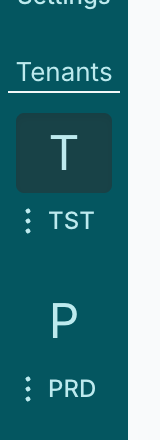
Your environments are listed in the Tenants section at the bottom of the sidebar. Click one to open its M3 UI:
The first time, the environment signs in with your normal Infor sign-in. See Sign in to your environments. After that, the session just stays alive.
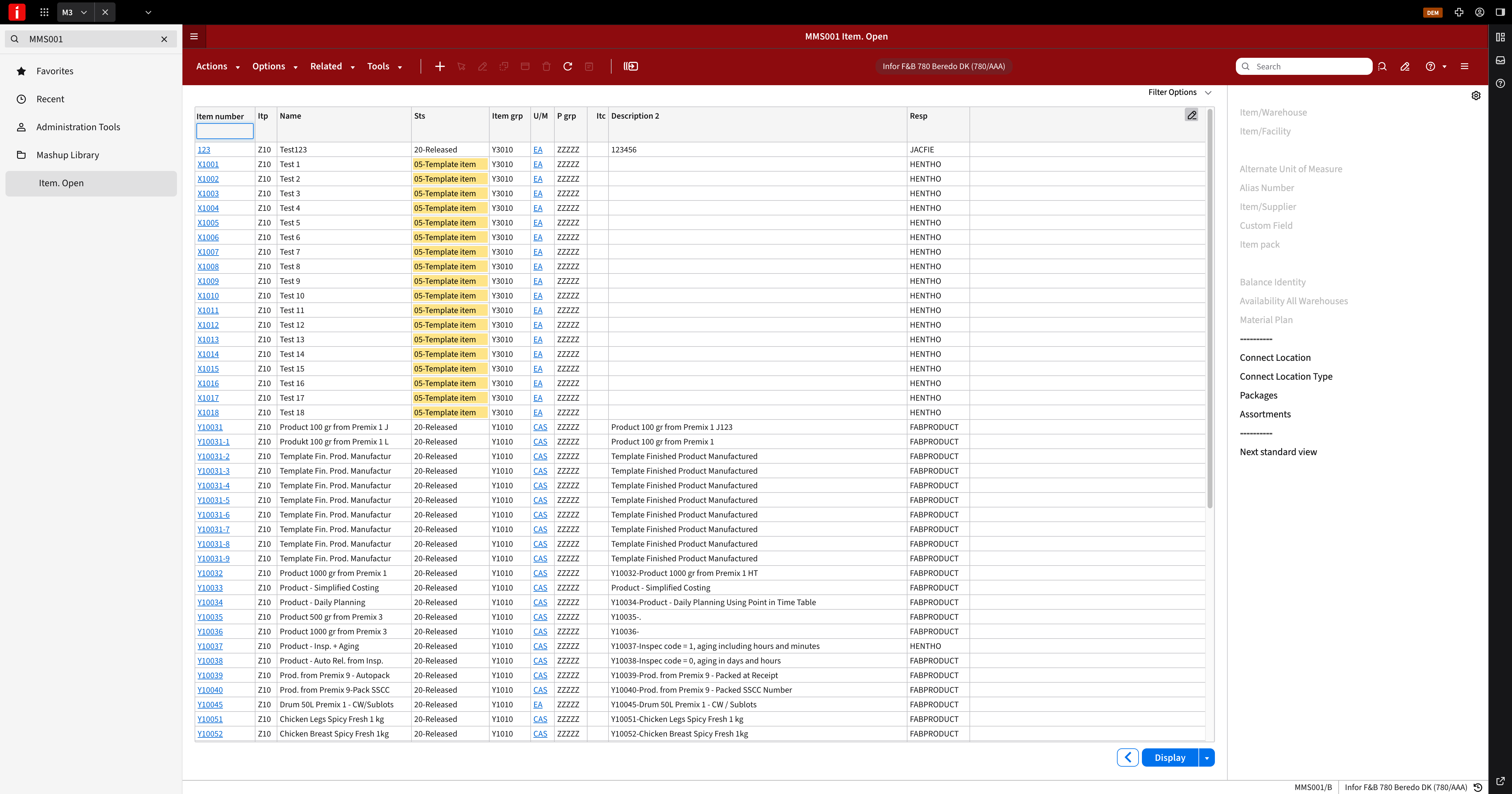
Inside, it's real M3. Search for programs, open favorites, work exactly as you would in the browser:
Switch between environments
Click another environment in the sidebar and you're instantly in that environment's M3. Each one keeps its own session, its own open programs, its own state. Click back and everything is where you left it. On the keyboard, Alt+5 (⌘5 on a Mac) opens the first environment, Alt+6 the second, and so on.
Right-click an environment in the sidebar for more options: Reload view, Close view, and Detach view, which pops the environment out into its own window. Closing that window puts it back in Loupe.
The browser toolbar
Above the M3 view you get a small toolbar with back, forward and reload, plus a Search in page box (Ctrl+F, ⌘F) that shows how many matches it found:

Downloads
Files you download from M3, and exports you make in Loupe, are collected in the Downloads window. Open it with the download icon in the top bar, which blinks when a download is running, or from the Window menu. From there you can open a file or show it in its folder.
Where you'll meet it again
The M3 views are also where other parts of Loupe take you: the open-in-M3 links in Compare and Explore results open the row's M3 program in that environment's view.