Explore
Explore M3 data
Explore is your scratch space. Open a table to browse its rows, or run a transaction to fetch live data, in as many tabs as you need, without saving anything.
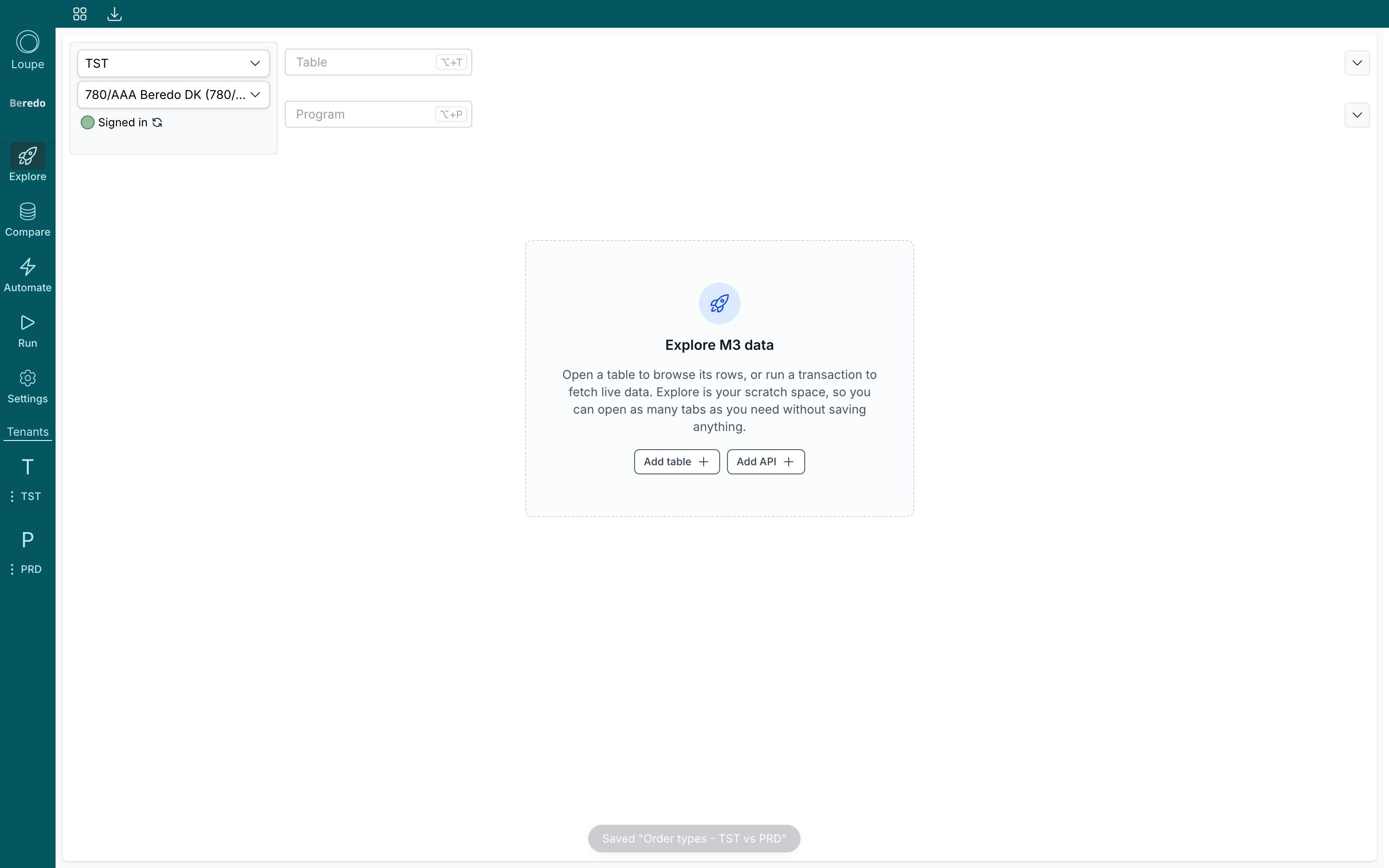
Before you start
Make sure you're signed in to the environment you want to look at. Explore works against a single environment. Pick it, and the company/division, at the top left.
Open a table
Click Add table, or press Alt+T (⌥T on a Mac), and search by table name, program or keywords:
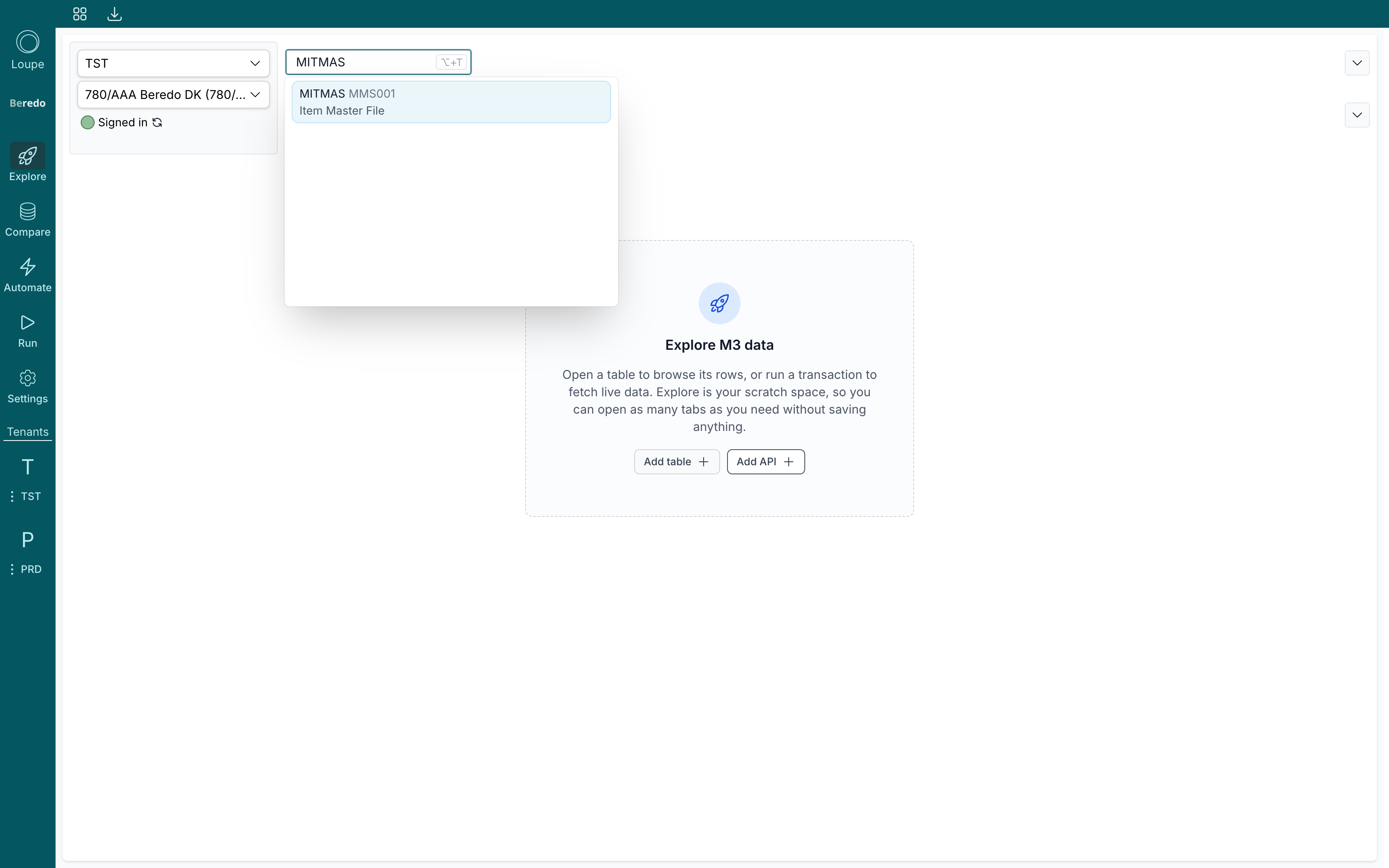
Pick the table and press Run to load its rows. Each table opens in its own tab in the top row. Right-click a tab to close all tabs, or all tabs to the left or right of it.
Filter what you see
Click Edit above the table to open its configuration:
- Filters limit the rows. Search for a field, pick it, choose an operator (
=,!=,>,<,>=,<=) and give it a value. Combine several filters with and or or. For example, filtering the item master onMMSTAT = 20shows only released items. - Output fields choose which columns are included. The key icon next to a field marks it as a key field, which pins it to the left of the grid.
Click Finish editing, then Run again:
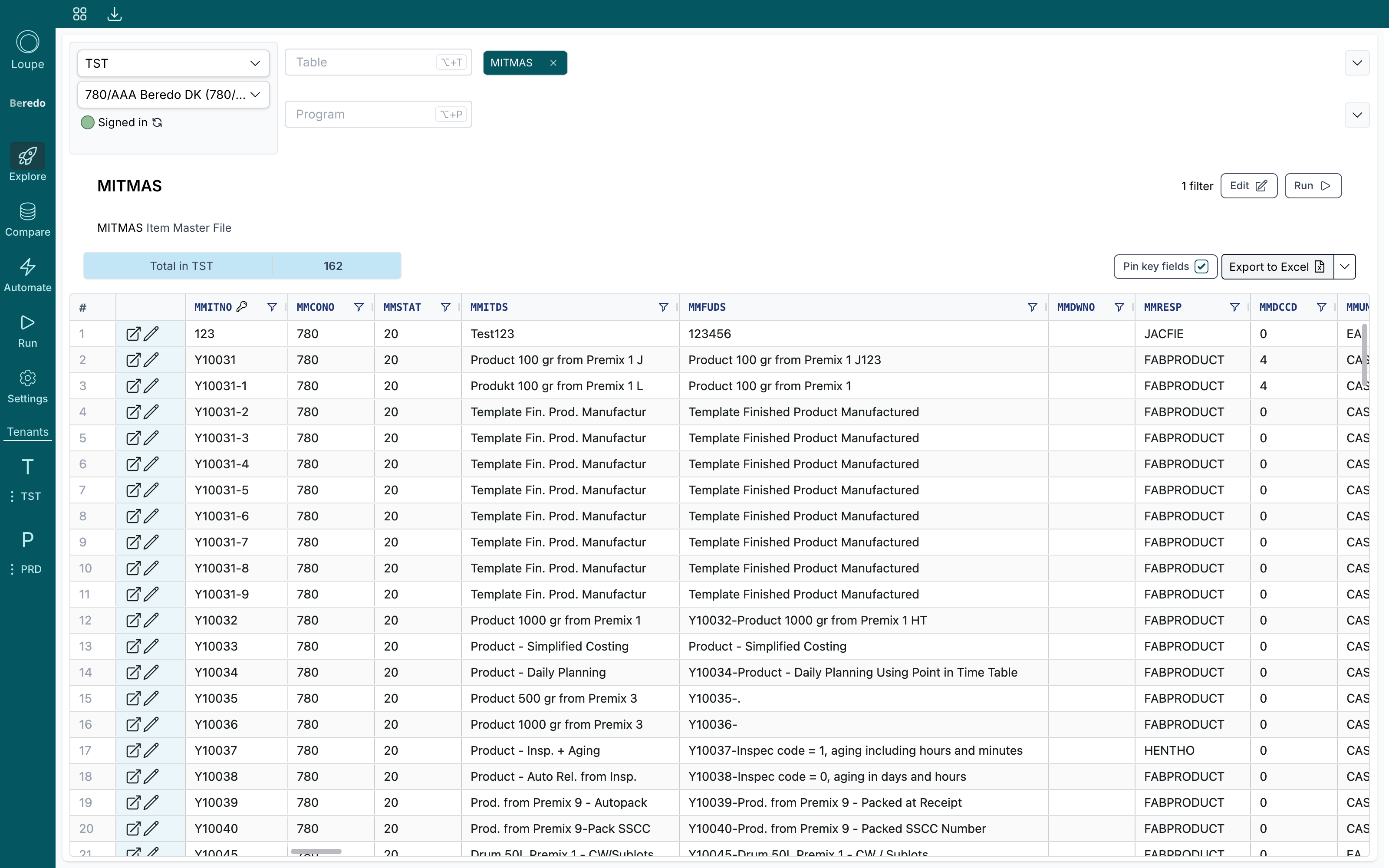
From here you can keep refining filters, toggle Pin key fields, filter individual columns with the funnel icon in the column header, or Export to Excel. The arrow next to the export button offers Export to CSV instead.
If you change the configuration after a run, a banner reminds you that the results are from the previous configuration until you Re-run.
Run an API
Click Add API, or press Alt+P, to search for a program in the second row. Pick the program and transaction, fill in any inputs, and press Run. The response appears in the grid on the right.
The clock button next to each input shows values you've used before, and the clock in the results toolbar shows earlier runs of this API so you can restore their inputs and results. This history is stored on your computer only.
For the full API workflow, with saved collections and exports, see Run APIs.
Open rows in M3
The icons in the far-left column of a table open that row directly in its M3 program, either in browse mode or in edit mode. See Open rows in M3.
Next steps
When you find yourself checking the same table in two environments, switch to Compare. That's exactly what it's for.