Run & Automate
Transform and translate data
Migration data rarely arrives the way M3 wants it. Warehouse codes from the old system, dates in the wrong format, spaces at the end of an item number. Automations can fix all of this on the way to M3, without editing the input file first.
The examples on this page come from one automation: it moves items to new warehouses. The input file has an item number, the warehouse code from the old system, an item type and a status. A lookup table translates the old warehouse codes into new ones, and the automation connects each item to its new warehouse with MMS200MI/AddItmWhs.
Lookup tables
A lookup table swaps a value for its match: the old warehouse STHLM becomes the new warehouse 110. Lookup tables belong to the automation collection, so every automation in the collection can use the same table.
In the collection list, click + next to Lookup tables to create one, or click a table's name to edit it:
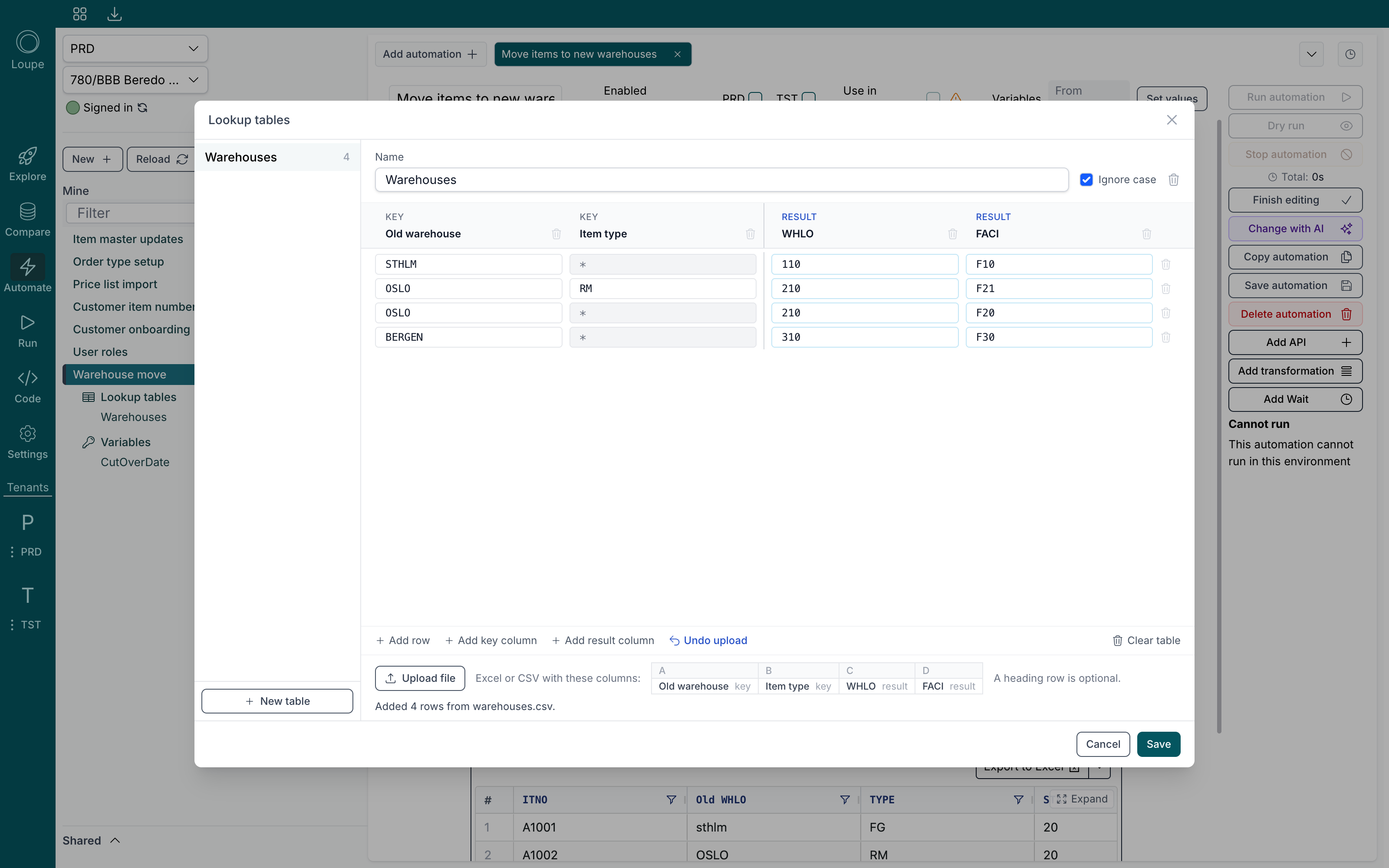
A table has key columns on the left and result columns on the right. A value is looked up by its keys, and gives back one of the results:
- Add key column when one value is not enough to find the match. In the example,
OSLOraw materials (RM) go to facilityF21, while everything else fromOSLOgoes toF20. - Add result column when one match gives several values. The example gives both the new warehouse (
WHLO) and its facility (FACI) from the same row. - A
*in a key matches any value. When several rows match, the most specific one wins (the one with the fewest*), and after that the first. - Keys are always compared without spaces at the start and end. Tick Ignore case to also match
sthlmwithSTHLM.
Fill the table with Add row, by pasting rows from Excel, or with Upload file. An upload takes an Excel or CSV file whose columns are in the order shown next to the button; a heading row is optional. Uploaded and pasted rows are added to the rows already there, and Clear table empties the table. Undo upload, Undo paste or Undo clear takes the last of these back. When the same keys appear on more than one row, the table says so: only the first row is used, and the others are crossed out.
Click Save to keep your changes.
Variables
A variable is a named value that every automation in the collection can use, such as a cut-over date. Change it in one place, and every automation picks up the new value on its next run.
Click + next to Variables in the collection list:
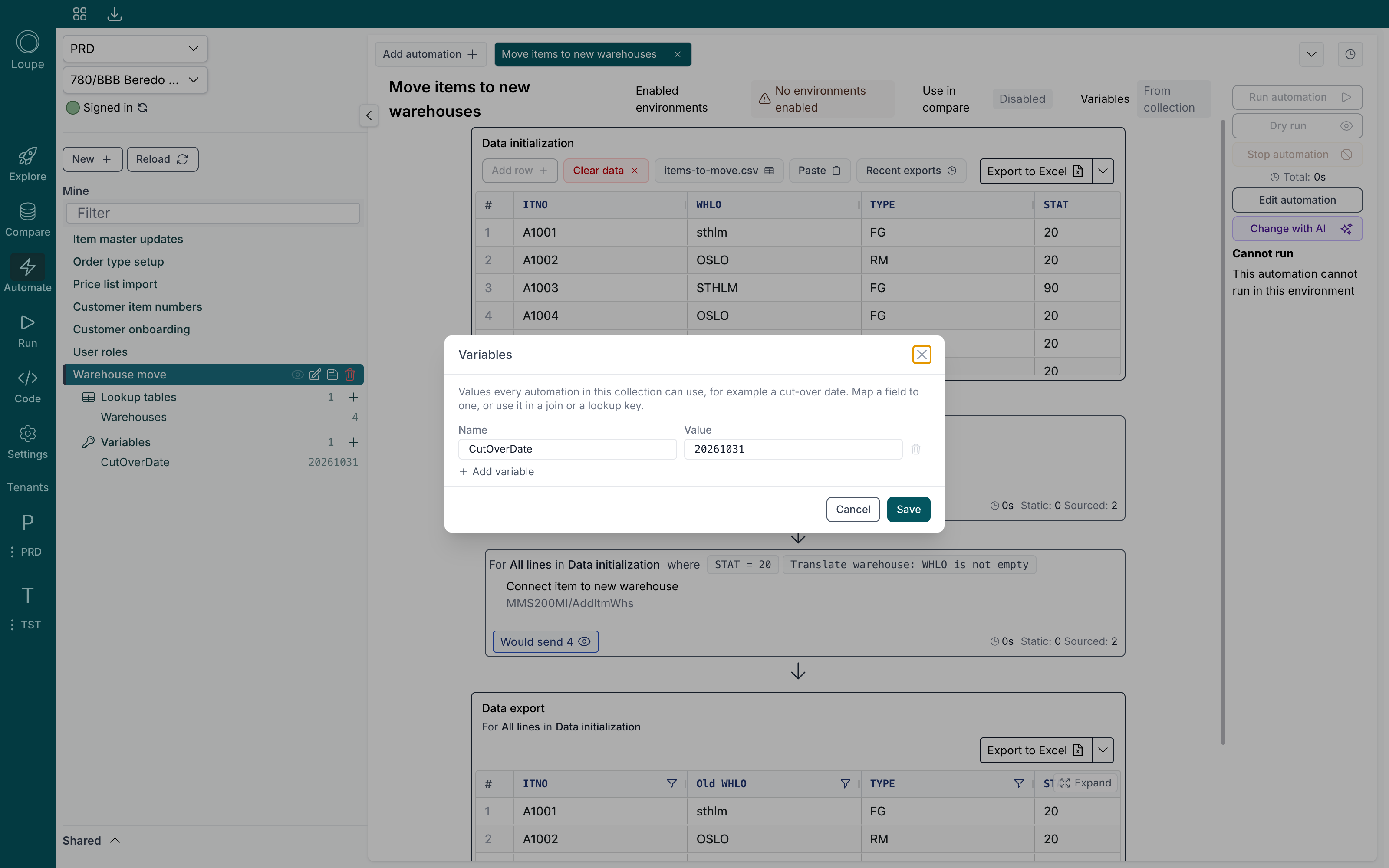
Wherever you pick a value for a field, a variable is listed as Variable: CutOverDate. You can map an input to it, write it to an export column, or use it as a lookup key or in Join values.
An automation can use its own value instead of the collection's: click Set values next to Variables at the top of the automation. Delete the variable from the collection, and the automation's own value goes with it.
The date and time of the run
Next to variables, every value picker offers the moment the run started: Today, local date and Now, local time from your computer, or Today, M3 date and Now, M3 time from the M3 server. Dates come as yyyyMMdd and times as HHmmss, the way M3 expects them. The moment is taken once per run, so every row of one run gets the same date and time.
Field transforms
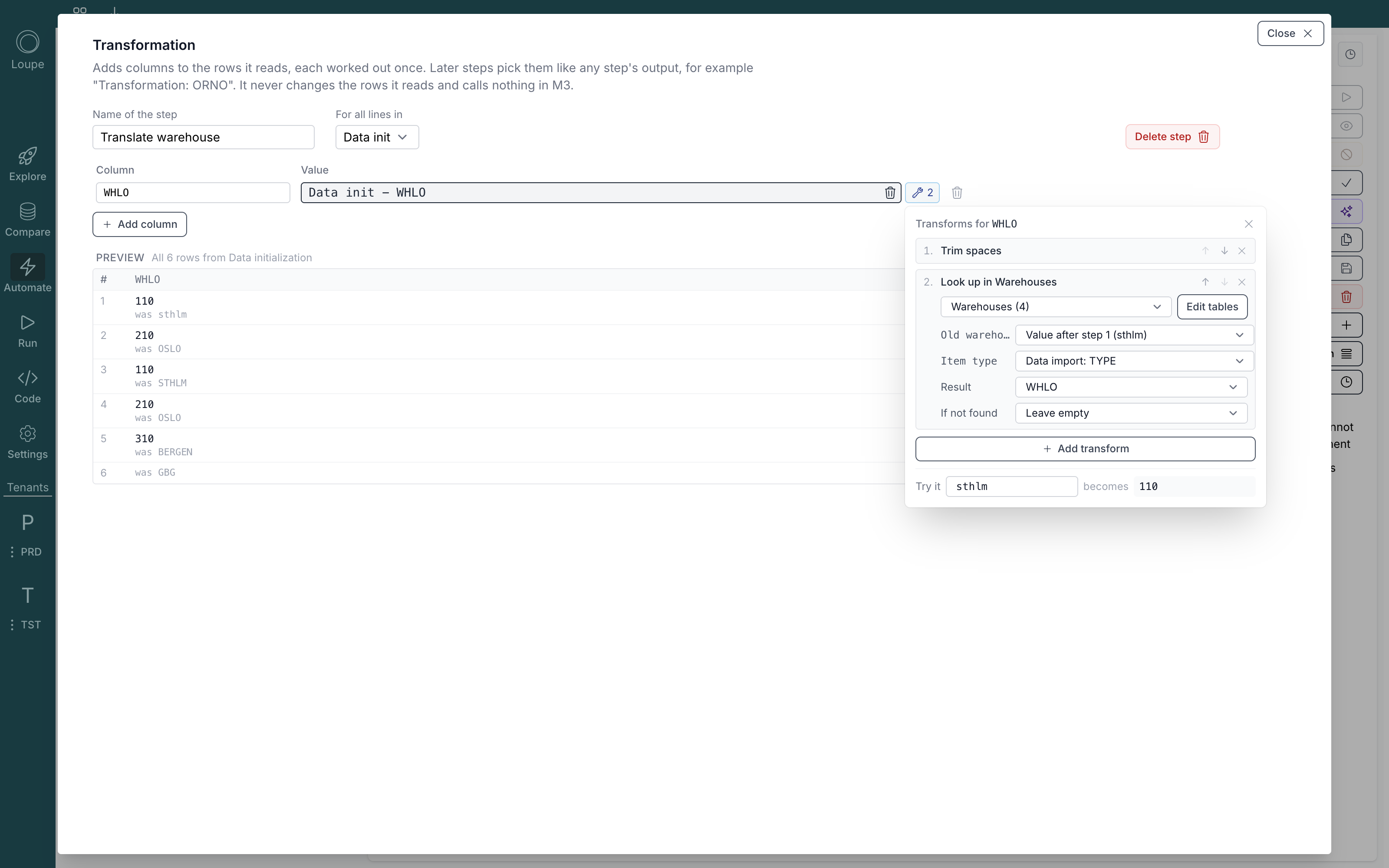
A field transform changes a value before it is used. Click the wrench next to a mapped field to open its transforms, and Add transform:
| Group | Transforms |
|---|---|
| Text | Trim spaces, Upper case, Lower case, Replace text, Pad (42 becomes 00042), Part of text, Join values (combine several values, for example ITEM1-100) |
| Numbers | Convert decimal separator (1.000,45 becomes 1000.45), Remove trailing zeros, Round |
| Dates | Date and time format (31.12.2026 becomes 20261231, 14:30 becomes 143000) |
| Values | Look up in a lookup table, Value if empty |
Transforms run from top to bottom, each on the result of the one before. Use the arrows to change the order. Try it at the bottom shows what a value of your choice becomes, so you can test a transform before you run anything.
For Look up, pick the table and the Result you want back. The first key reads the value as it is at that point (Value after step 1 above); any other key can read any other value of the row, such as the item type from the Data init. If not found decides what happens when no row matches: Keep the value, Leave empty, or Use a fixed value.
Transformation steps
When a translated value is needed in more than one place, work it out once in a Transformation step. Click Add transformation in the right-hand rail:
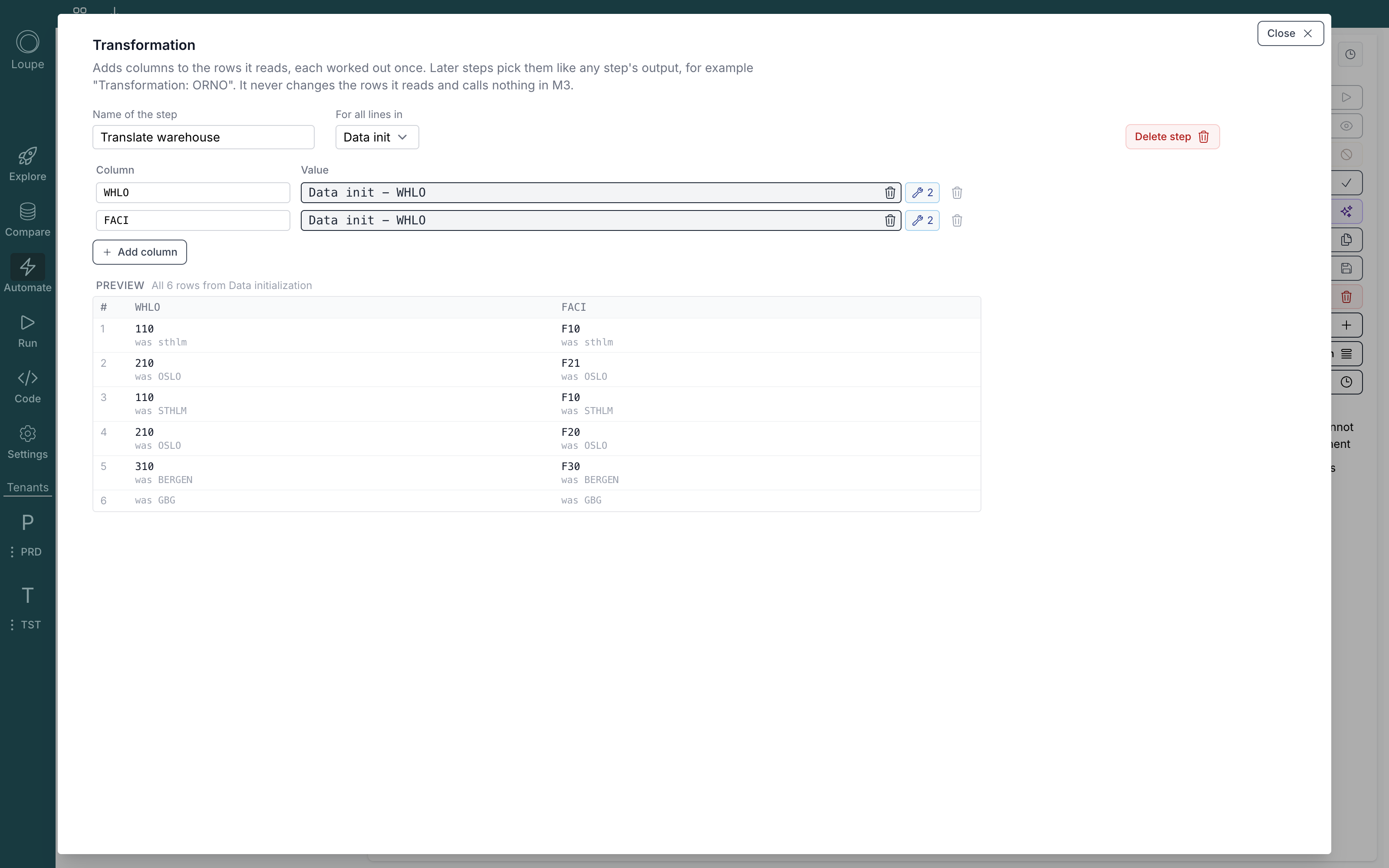
A Transformation adds columns to the rows it reads, and calls nothing in M3. For each column, give it a name and pick its value the same way you map an API input, transforms included. The Preview below shows every row's result, with the original value underneath, so you can see straight away which values translated and which did not. In the example, GBG has no row in the lookup table, so its new warehouse stays empty.
Name the step, here Translate warehouse. Later steps then find its columns under that name: Translate warehouse: WHLO. A Transformation never changes the rows it reads, so the Data init still holds the old warehouse code next to the new one. Renaming a column updates every step and export column that reads it.
Translated values everywhere
Once a Transformation has run, its columns can be used anywhere other values can:
- API inputs: map
WHLOto Translate warehouse: WHLO instead of the Data init's old code. - Where conditions: skip the rows that did not translate, for example where Translate warehouse: WHLO is not empty. See Where conditions.
- For grouping: pick the Transformation in In, and group on one of its columns, for example to run once per new warehouse.
- Data export: write the old and the new value side by side, to check the translation. See Configure the export.