Compare
Use variables in Compare
Variables solve two common problems in a compare.
- Change one value everywhere. Map a variable into the filters of many tables, and update it in one place instead of editing every table.
- Compare rows with different keys. Give a variable a different left and right value, for example order type
D75in TST againstD10in PRD, and Loupe compares those rows as if they were the same record.
Add a variable
With a compare open, click the plus icon in the compare's action row. A new row appears under the compare with three inputs: the variable's name, its left value and its right value. The left value is used in the left environment, the right value in the right one:
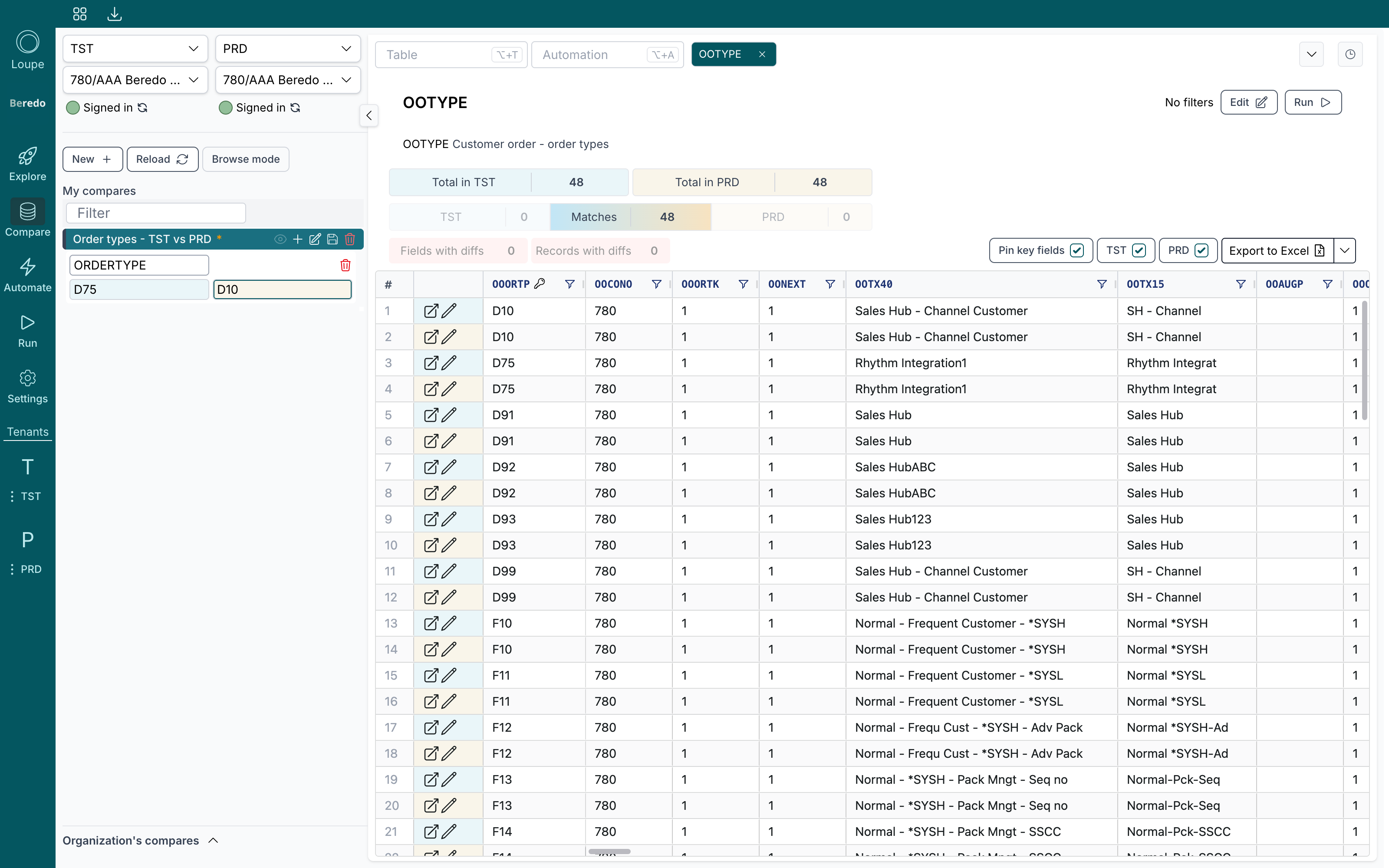
Use the same value on both sides when you just want a reusable filter value. Use different values to compare different records.
Map the variable into a filter
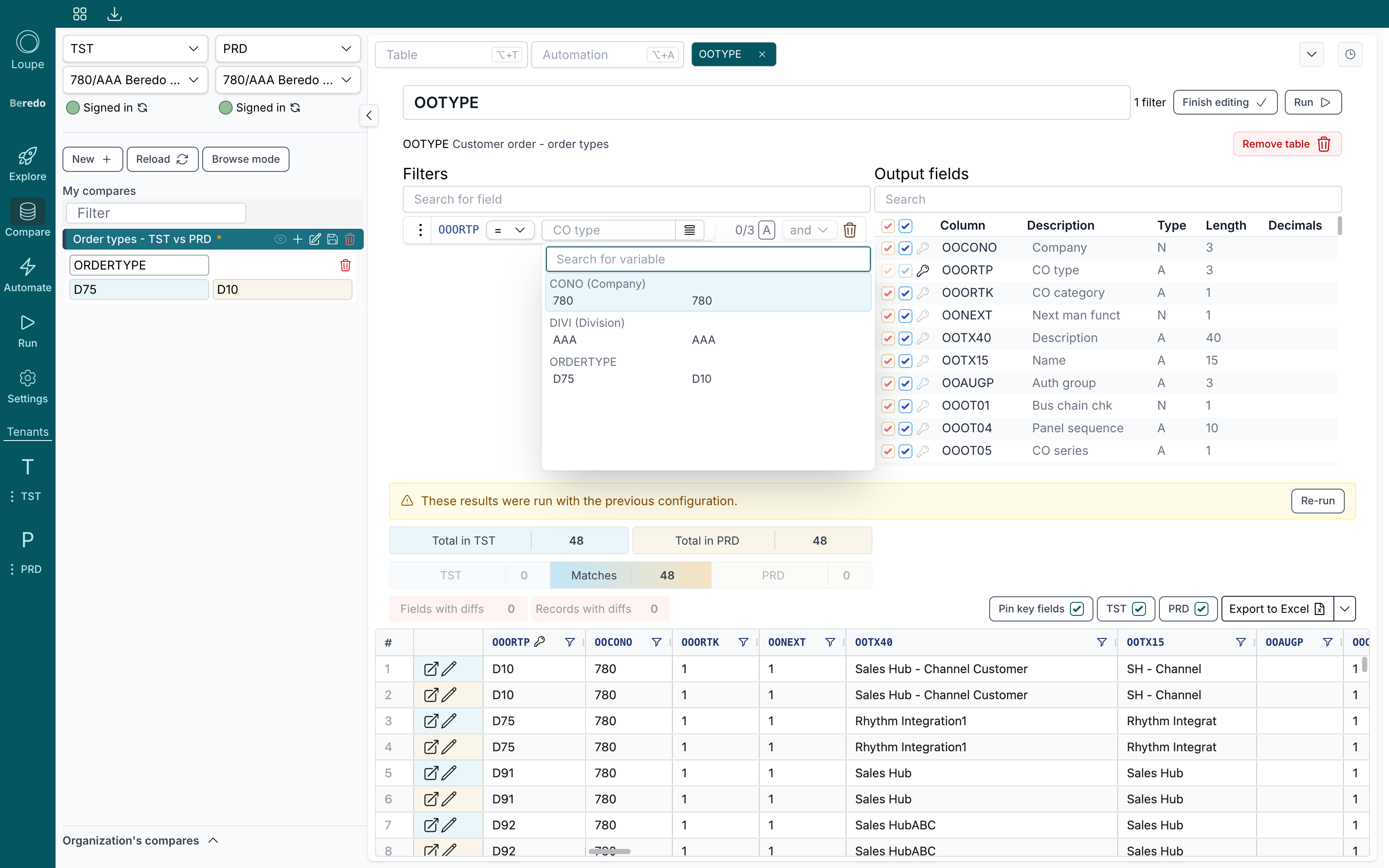
Open the table's Edit view, add a filter on the field you care about, and click the list icon next to the filter's value. Pick your variable:
Built-in variables
Loupe always provides CONO (Company) and DIVI (Division) as built-in variables, filled from each side's selected company/division. Map them into filters instead of hard-coding company numbers, and the compare keeps working when someone opens it against other companies.
Click Finish editing and run.
Read the results
With different left and right values, the two rows are matched up and compared field by field. Differences are highlighted:
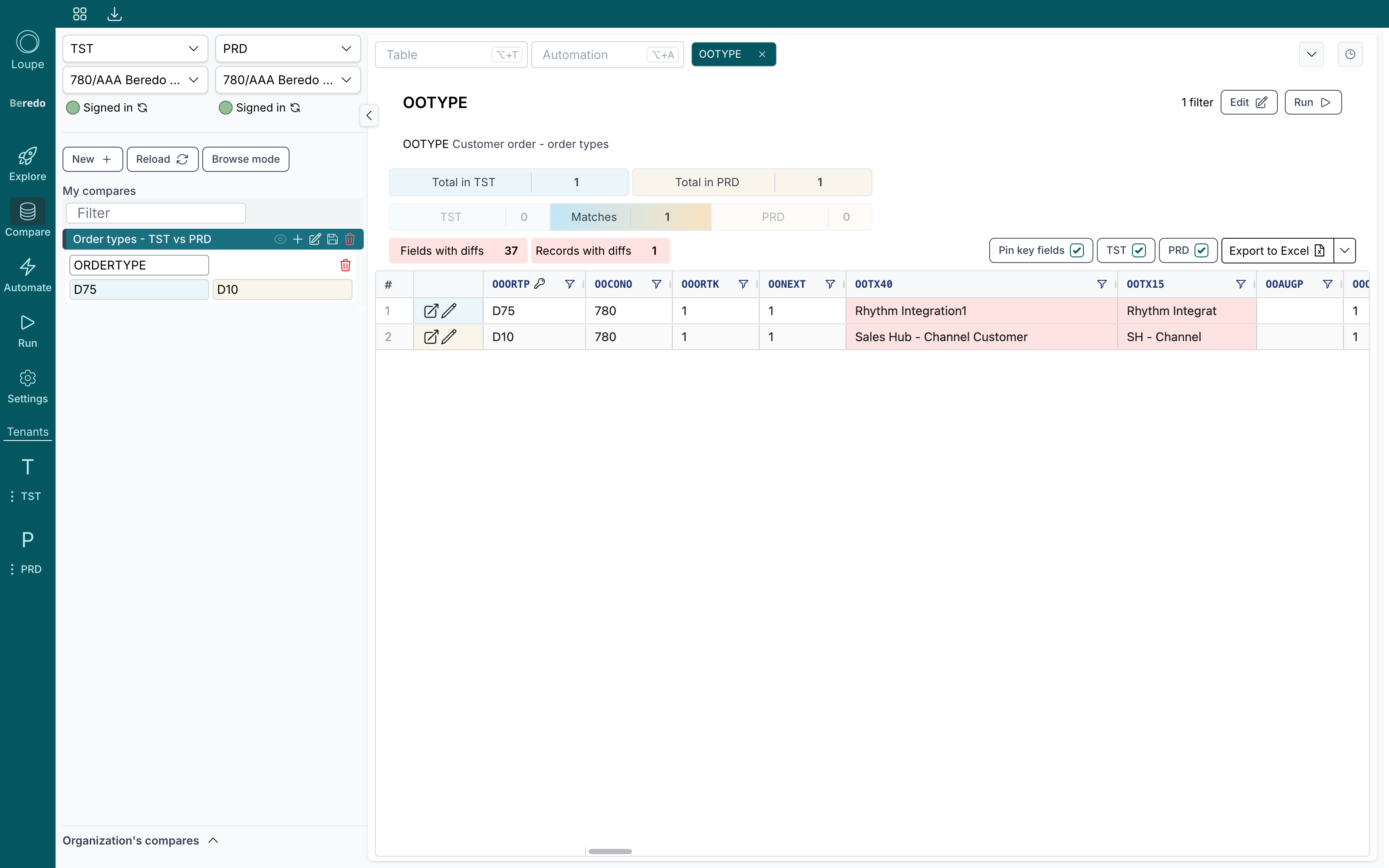
Here order type D75 (TST) is compared against D10 (PRD): one matched record, with every differing field counted and marked. Fields mapped to a variable are treated as identical, whatever their actual values.